Suppose you've created an online quiz in Porsline and assigned points to answers using the “Calculations” feature. At the end of the quiz, you want to show each participant a result or explanation based on their total score, or direct them to a specific page that matches their level.
You can do this by combining Calculations, Logic and End Pages, allowing each participant to see the result that corresponds to their score.
In this guide, we'll use an English language placement test as an example, with three possible results: Beginner, Intermediate and Advanced.
Create Different End Pages Based on Quiz Scores
Before setting up the conditions, make sure you've assigned scores to your quiz questions using “Calculations”. This allows Porsline to calculate each participant's total score automatically.
If you haven't configured scoring yet, see How to Add Calculations and Scores to Online Forms in Porsline.
Next, create different End Pages based on the score ranges and results you want to display.
For our English language placement test, we'll create three End Pages:

- Beginner: For participants with lower scores.
- Intermediate: For participants whose scores fall within the middle range.
- Advanced: For participants with higher scores.
Go to the “Create” phase in Porsline and add three End Pages. Then enter the appropriate result or explanation on each page.
For example, you could use a heading such as “Your level: Beginner”, followed by a short description explaining what the result means.
Creating and customising multiple End Pages is available on the Pro and Enterprise plans.
Direct Participants to the Correct End Page Using Their Score
Once you've created the End Pages, you need to define which page each participant should see based on their total quiz score.
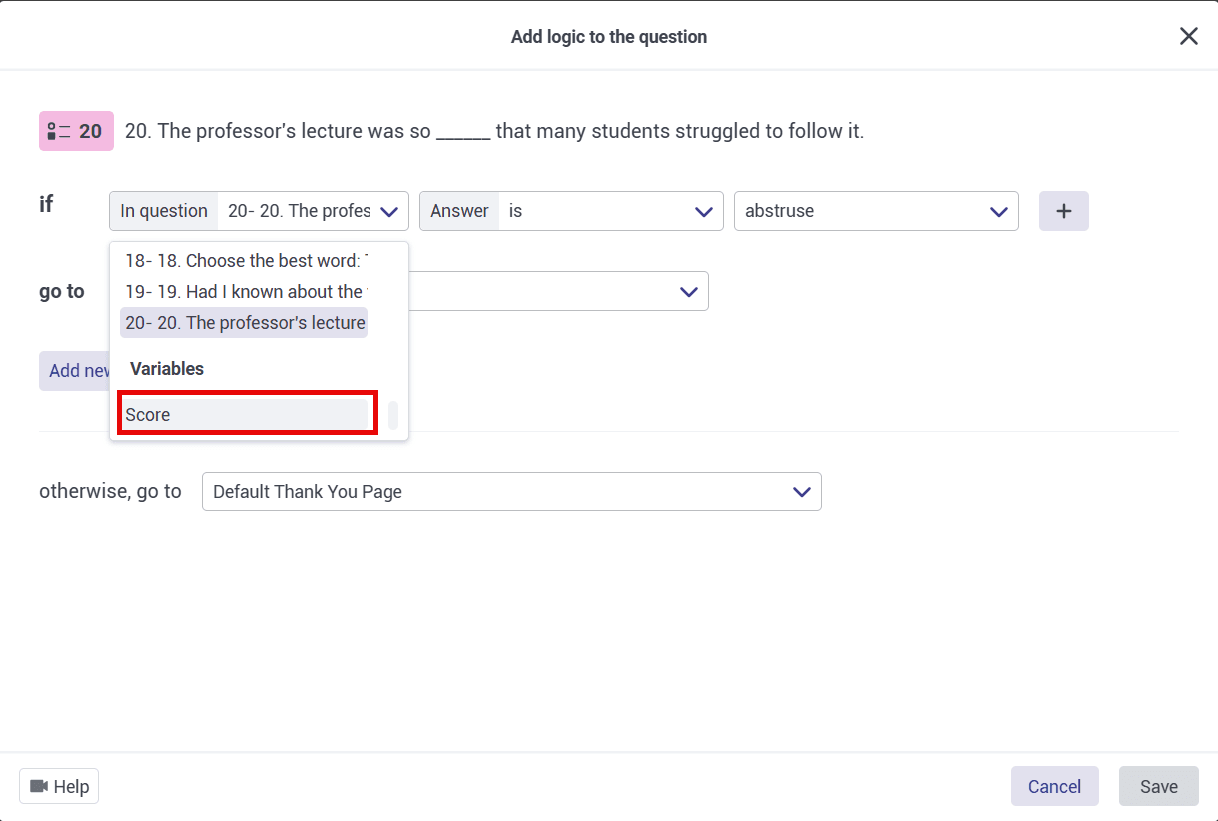
To do this:
- Go to the last question in your quiz.
- Open “Logic” for that question.
- Add a condition and select the score variable containing the participant's total score.
- Define the score range for each condition.
- Connect each condition to the corresponding End Page.
Start with the lowest score range and work your way up.
For the English language placement test, the conditions would be:
- If the score is 40 or lower: Direct the participant to the “Beginner” End Page.
- If the score is greater than 40 and up to 80: Direct the participant to the “Intermediate” End Page.
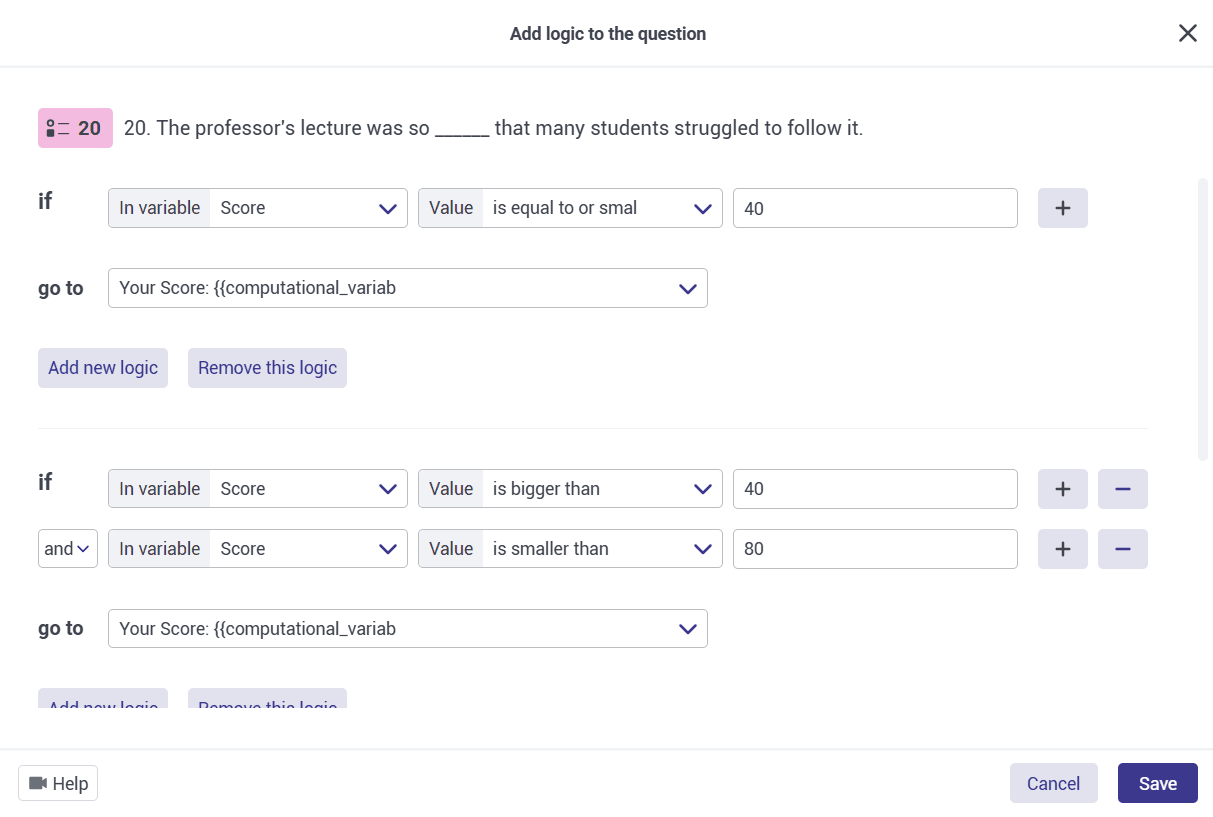
- If the score is greater than 80: Direct the participant to the “Advanced” End Page.
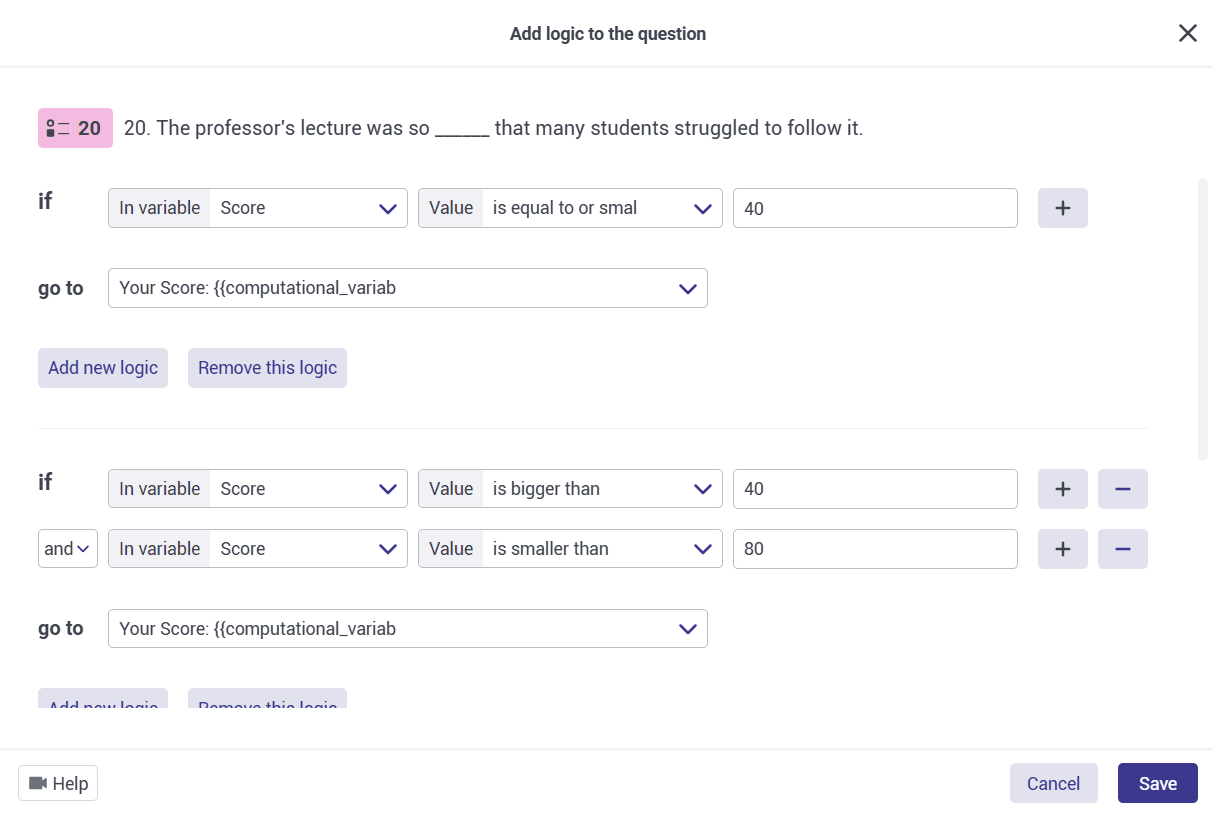
Porsline will then use the conditions you've defined to determine which End Page each participant reaches.
Make sure the score ranges don't overlap, and choose a default End Page for cases where no other ending condition applies.
Display the Participant's Score on the End Page
If you also want participants to see their final score alongside their level, you can use variable piping on the End Page.
Open the relevant End Page, type @ in the page text and select the score variable from the list.
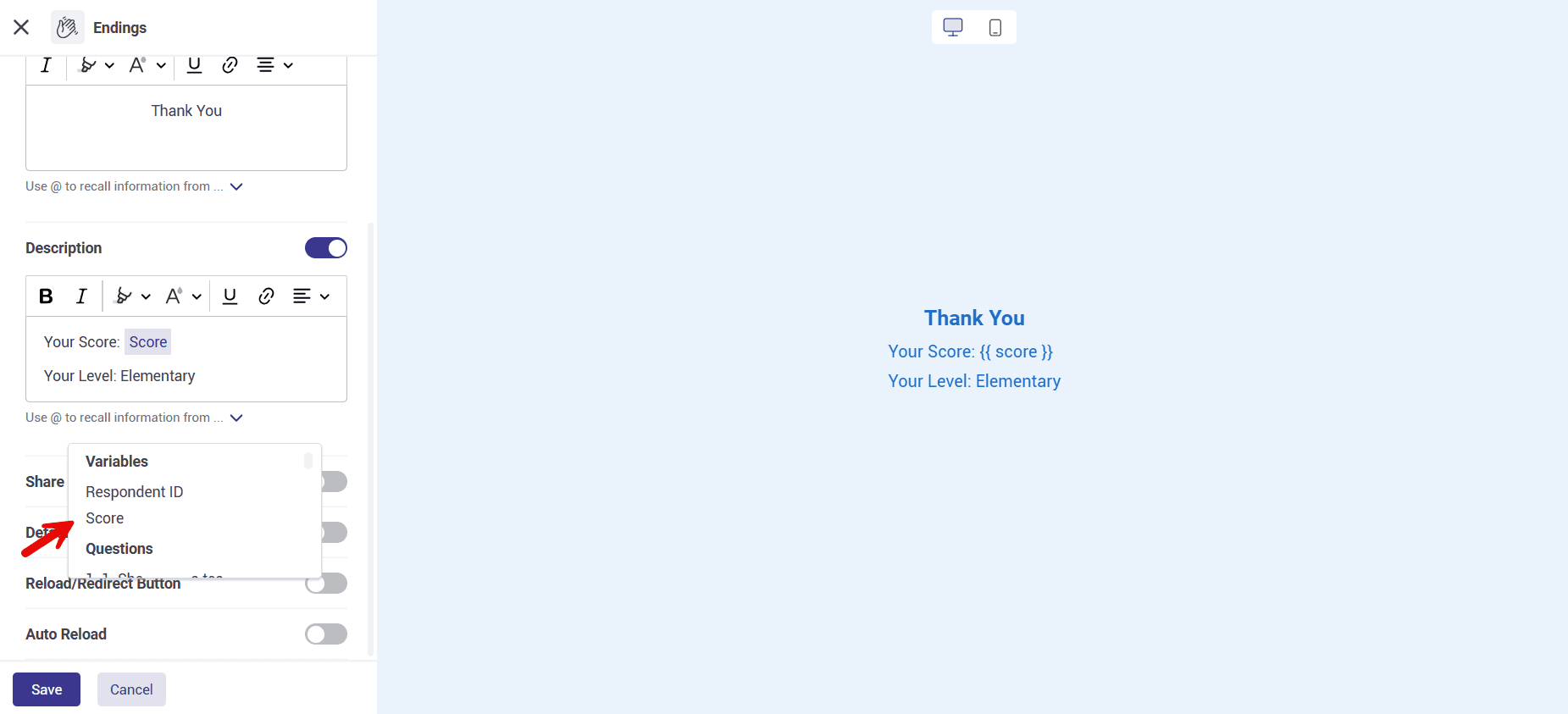
For example, you could write:
“Your language level: Intermediate
Your final score:”
Then insert the score variable after “Your final score” so that the participant's calculated score appears automatically.
Repeat this on the other End Pages if you want participants to see both their level and their numerical score.
For more information about configuring these pages, see How to Customize the End Page in Porsline.
Redirect Participants to a Custom URL Based on Their Quiz Results
You may prefer to direct participants to a page on your website instead of displaying their result on a Porsline End Page.
For example, you could create separate pages containing learning resources for Beginner, Intermediate and Advanced participants.
To configure this, open the End Page settings. Under “After submit”, select “Redirect to URL” and enter the destination address.
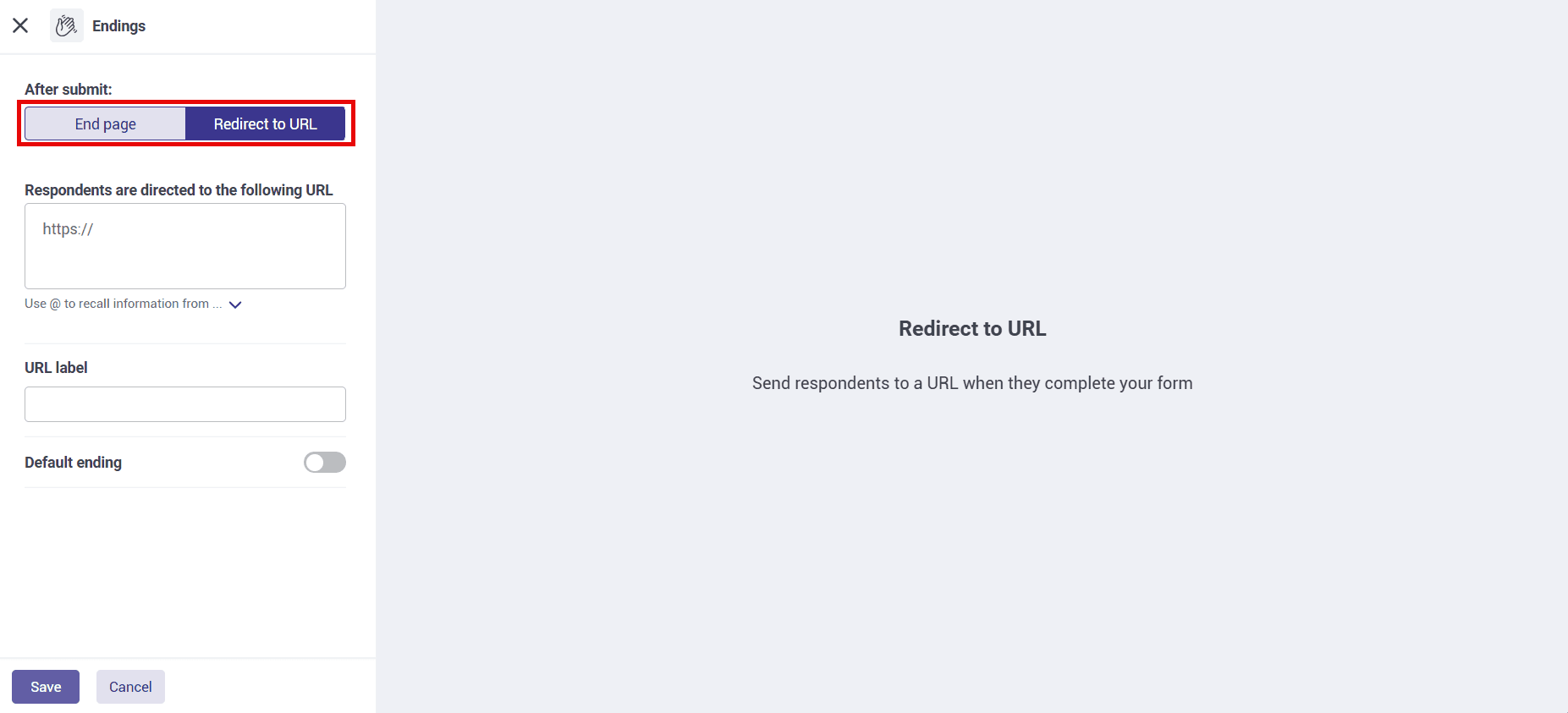
You can also assign a “URL label” to each destination, such as “Beginner resources” or “Advanced resources”, making it easier to identify the appropriate destination when configuring Logic.
Then connect the score-based paths to their corresponding destinations using the quiz settings.

Note: Automatic redirection to an external URL immediately after submission is an Enterprise feature. If you want participants to see an End Page first and then choose to visit another page, you can use the Reload/Redirect Button instead, according to the options available in your account.
Test the Result Pages Before Sharing Your Quiz
Once you've configured the conditions and End Pages, use Preview to make sure participants reach the correct result.
For the example above, test scores such as 40, 41, 80 and 81. Check that each score leads to the intended level and that the final score is displayed correctly.
If you're using external URLs, make sure each destination opens the correct page.
For a visual walkthrough of Logic and End Page customisation, visit the Porsline video tutorials.
If you have questions or experience problems setting up score-based quiz results, contact the Porsline support team for assistance.