360-Degree Feedback Survey Template for Employees
Get a broader, more balanced view of employee performance by bringing together feedback from the line manager, peers and the employee’s self-assessment in one structured, easy-to-run survey.
Use Porsline’s ready-made template to create an online 360-degree feedback survey, collect responses confidentially and analyse the results to make more informed development decisions.
The accuracy of a performance review depends on the range of sources informing the decision. When feedback comes only from an employee’s line manager, it may not fully reflect how the employee collaborates with peers, communicates with others or contributes to team performance.
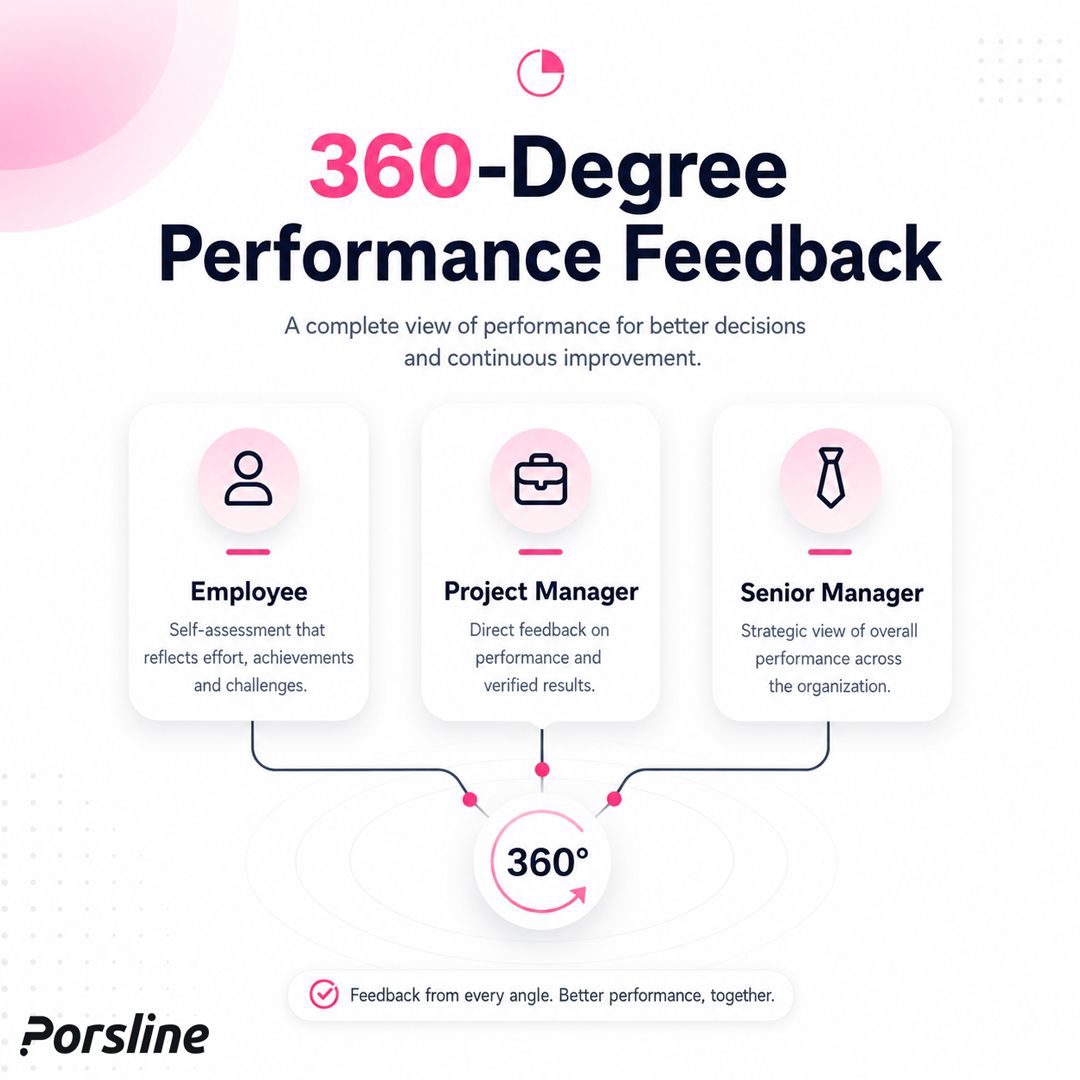
A 360-degree feedback survey brings together input from the line manager, peers, direct reports and the employee’s self-assessment in one online survey. This gives HR teams a more balanced view of strengths, competency gaps and development priorities.
You can start with Porsline’s ready-made template, then tailor the assessment areas and questions to the role, reporting structure and purpose of the feedback cycle. You can also explore Porsline’s online survey builder to design the survey, organise questions, collect responses and analyse the results within one workflow.
What Is a 360-Degree Feedback Survey for Employees?
A 360-degree feedback survey gathers structured feedback on an employee’s performance and workplace behaviours from their line manager, peers, direct reports and self-assessment.
Comparing these perspectives helps identify strengths, competency gaps and development priorities more comprehensively than a review based only on the line manager’s perspective.
This type of feedback usually focuses on behaviours that other people can observe, such as:
- Communication with team members.
- Collaboration and reliability.
- Commitment to responsibilities.
- Initiative and problem-solving.
- Openness to feedback.
- Leadership and delegation in management roles.
Gathering feedback from more sources does not automatically make every opinion accurate. The quality of the results depends on selecting suitable raters, writing clear questions, using a consistent response scale, managing confidentiality appropriately and interpreting the findings within the context of the employee’s role.
The purpose of 360-degree feedback is not to reach a quick judgement about an employee. It is to identify behaviours and competencies that can be developed using feedback from multiple sources.

Why Is a 360-Degree Feedback Survey Important?
A 360-degree feedback survey is a practical way to collect constructive feedback from several sources, helping employees understand their strengths and development opportunities from a more balanced perspective.
With Porsline, you can manage 360-degree reviews as part of your employee experience and HR processes, alongside employee satisfaction surveys, employee engagement surveys, performance reviews and other tools for monitoring the employee experience.
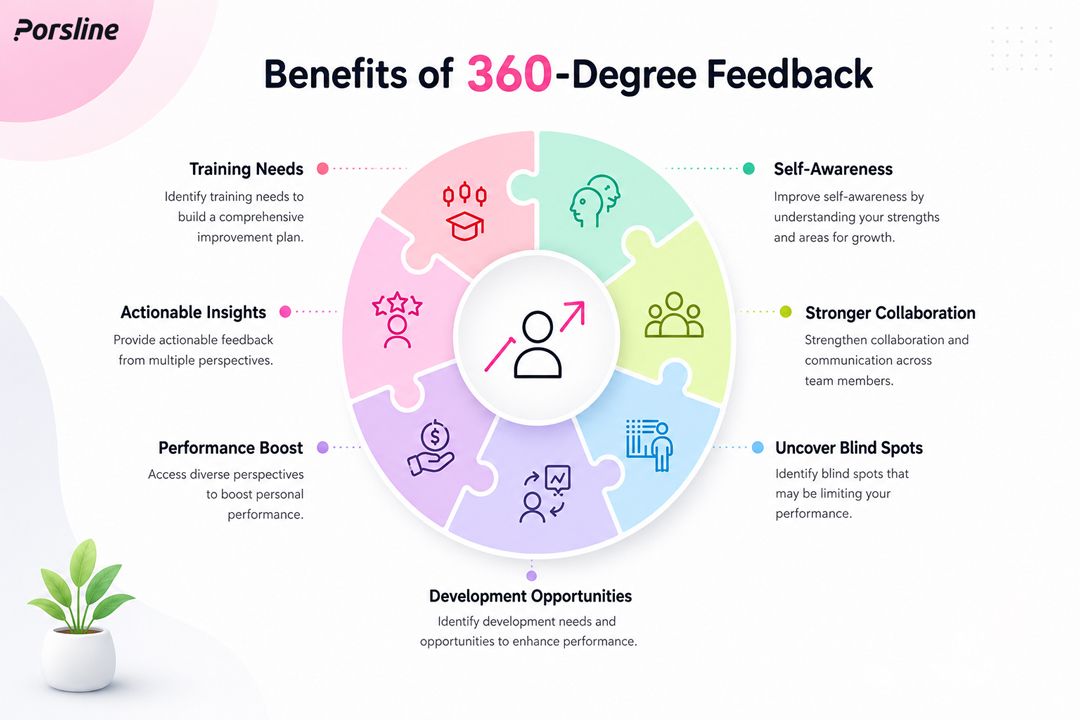
The main benefits of 360-degree feedback include:
- Building employees’ self-awareness by comparing their self-assessment with feedback from others.
- Highlighting strengths that appear consistently across different workplace situations and relationships.
- Identifying behaviours and competencies that require development.
- Supporting individual training and development plans.
- Understanding the quality of communication and collaboration within the team.
- Reducing the effect of relying on one person’s opinion.
- Providing feedback that can be converted into measurable development goals.
- Supporting manager and leadership development programmes.
What Is the Difference Between 360-Degree Feedback and a Traditional Performance Review?
360-degree feedback is not automatically a replacement for every performance review method. The right approach depends on the purpose of the process and the type of information the organisation needs.
| Comparison criterion | Traditional performance review | 360-degree feedback |
|---|---|---|
| Feedback sources | Usually the line manager | The line manager, peers, direct reports and the employee’s self-assessment |
| What does it measure? | Achievements, objectives and job responsibilities | Performance and workplace behaviours from multiple perspectives |
| Best suited to | Reviewing job performance and employment outcomes | Professional and leadership development, and understanding the employee’s impact on others |
| Outputs | A managerial rating or performance-related decision | Strengths, development gaps and recurring patterns |
| Risks | Overreliance on one person’s perspective | Conflicting feedback or ratings influenced by personal relationships |
The two approaches can be used together. A traditional performance review helps assess objectives and achievements, while 360-degree feedback adds insight into communication, collaboration, leadership and other workplace behaviours.
When your aim is to evaluate managers and leaders, a 360-degree manager feedback survey may be more suitable. When you need a direct review of objectives and responsibilities, an employee performance evaluation template may be the better option.
What Types of 360-Degree Feedback Surveys Are There?
A common mistake is to treat every 360-degree feedback survey as though it were the same. In practice, the right format depends on the purpose of the review. Are you conducting a general assessment, developing leadership skills or reviewing employees against a competency framework?
It is better to design a survey for the specific purpose than to copy a general template and try to apply it to every role.
| Type | When should it be used? | Why is it suitable? | Implementation note |
|---|---|---|---|
| General employee 360-degree feedback survey | When launching the programme for the first time | Easy to understand and implement | Start with a limited number of assessment areas |
| 360-degree feedback survey for managers | When evaluating leadership and management practices | Focuses on leadership, communication and decision-making | Select raters from the manager’s immediate team |
| Competency-based 360-degree feedback survey | When the organisation has a clearly defined competency framework | Aligns the survey with the organisation’s formal HR framework | Suitable for organisations with more mature HR processes |
| Development-only 360-degree feedback survey | When you want to reduce anxiety about the review | Encourages greater openness because the purpose is development | Do not link the results directly to rewards |
| Short 360-degree feedback survey | For large teams or rapid feedback cycles | Improves the completion rate | Use only 15–25 questions |
The best survey is not the longest one. It is the one most closely aligned with a specific organisational objective.
For example, if the purpose is leadership development, you do not need detailed questions covering every aspect of operational performance. If the purpose is to understand collaboration within a team, the questions should focus on behaviours that peers can observe.
What Questions Should a 360-Degree Feedback Survey Include?
There is no single set of questions that suits every organisation or role. A 360-degree feedback survey should be built around the purpose of the review cycle, the competencies required for the role and each rater’s working relationship with the employee.
Start with shared areas that can be observed in the workplace, such as accountability, communication, collaboration, initiative and responsiveness to feedback. Then add role-specific areas. A manager assessment may cover delegation, team development and decision-making, while an assessment for an individual contributor may focus more on reliability, quality of work and coordination with others.
The following questions can serve as a starting point. Remove or adapt any question that is not connected to a clear development decision.
| Question or field | Type | Purpose | Improvement note |
|---|---|---|---|
| Department or function | Dropdown list | Categorise results during analysis | Avoid requesting names when greater confidentiality is required |
| What is your working relationship with the employee? | Multiple Choice | Segment results by feedback source | For example: line manager, peer, direct report or self-assessment |
| The employee fulfils the responsibilities and expectations of their role | Opinion Scale | Measure core performance | Use the same scale throughout the survey |
| The employee communicates clearly and respectfully with others | Opinion Scale | Assess communication skills | Suitable for almost every role |
| The employee collaborates effectively with team members | Opinion Scale | Assess teamwork | Particularly important in collaborative environments |
| The employee responds constructively to feedback | Opinion Scale | Assess openness to development | Useful when preparing development plans |
| The employee shows initiative when solving problems | Opinion Scale | Assess initiative | Suitable for roles requiring independent judgement |
| What are this employee’s main strengths? | Long Text | Collect qualitative feedback | Keep the question open and specific |
| What is the most important area this employee should improve? | Long Text | Identify development priorities | Ask for behavioural examples rather than general judgements |
| What practical action would you recommend for this employee’s development? | Long Text | Turn feedback into action | Useful for an individual development plan |
When the survey is intended for managers, add questions about delegation, fairness, clarity of expectations and team development. For individual contributors, focus more on accountability, collaboration, responsiveness and quality of delivery.
The quality of a 360-degree feedback survey does not come from the number of questions. It comes from making each question clear, observable and measurable.
How Can You Improve the Accuracy of 360-Degree Feedback and Avoid Common Mistakes?
Even a well-designed survey can produce weak data if it is sent to unsuitable raters or includes vague questions.
Practices That Improve Result Quality
- Select raters who have worked with the employee closely enough to observe their behaviour.
- Explain that the purpose is employee development, not monitoring for its own sake.
- Use observable, behaviour-based questions.
- Make each question measure one idea only.
- Use a consistent response scale across all assessment areas.
- Add a Not applicable option when a rater cannot reasonably assess a behaviour.
- Balance closed-ended questions with open-ended questions.
- Analyse recurring patterns rather than relying on a single comment.
- Connect the results to a development plan and follow-up process.
Mistakes to Avoid
- Using the same survey for every role.
- Selecting people who do not know enough about the employee’s performance.
- Asking raters to provide their names without a clear need.
- Using broad statements such as, “The employee is good at their job.”
- Combining several behaviours in one question.
- Launching the review without explaining its purpose or how the results will be used.
- Linking results directly to sanctions or rewards before trust in the process has been established.
- Treating one rating as a final judgement.
How Do You Analyse 360-Degree Feedback Results?
Do not begin by looking only for the highest or lowest score. The greatest value comes from comparing feedback sources and identifying patterns that appear across more than one group.
| What should you review? | What might it mean? | Possible action |
|---|---|---|
| The line manager and peers agree on a strength | The competency appears consistently across different situations | Reinforce it and consider using it in broader responsibilities |
| The self-assessment is lower than ratings from others | The employee may underestimate their strengths | Discuss specific examples and help build professional confidence |
| The self-assessment is higher than ratings from others | There may be a gap in awareness of the behaviour or its impact | Provide specific feedback supported by examples |
| The line manager’s rating differs from peer feedback | The nature of the interaction or expectations may vary | Review the context before drawing conclusions |
| The same point appears repeatedly in open-ended responses | The pattern deserves further review and follow-up | Turn it into a measurable development goal |
| Ratings vary significantly between raters | The question may be unclear, or raters may have had different opportunities to observe the behaviour | Review the question and rater selection in the next cycle |
Interpret the findings within the requirements of the role and the context of the team, rather than treating each score as an isolated judgement.
Then identify the employee’s main strengths and one or two development priorities. Link each priority to a specific action and a clear follow-up date.
How to Create a 360-Degree Employee Feedback Survey in Porsline: Step by Step
The success of a 360-degree feedback process depends on more than having a ready-made template. You need to define the purpose of the review, select suitable raters, show relevant questions to each group and turn the responses into a clear development plan.
In Porsline, you can start with a ready-made survey template, create an initial draft using AI, import questions from a Word or Excel file, then customise, distribute and monitor the survey within one workflow.
Feature availability: Some capabilities in this guide are available only on specific Porsline plans. Check the current Porsline pricing page before configuring logic, authentication, custom variables, advanced reporting or integrations.
1. Choose the Right Way to Create Your Performance Feedback Survey
After signing in to your Porsline account, go to your surveys page and select Create New Survey. You can begin in one of the following ways:
- Use a ready-made survey template: Suitable when running a 360-degree feedback process for the first time.
- Create the survey using AI: Suitable for generating an initial draft that you can review and customise.
- Create the survey from a Word or Excel file: Suitable when your organisation already has a written question bank or competency framework.
- Start with a blank survey: Suitable when you want to build the feedback process around a specific internal system.
- Copy a previous survey: Suitable for recurring feedback cycles.
You can also explore Porsline’s ready-made survey templates, select the option closest to your organisation’s objective and customise it instead of creating every question from scratch.
Example AI Prompt for Creating the Survey
You can enter a prompt similar to the following:
Create a 360-degree performance feedback survey for employees at a service company. Tailor the survey for line managers, peers and self-assessment. Include sections covering accountability, communication, teamwork, initiative and responsiveness to feedback. Use a five-point response scale and add two open-ended questions about strengths and the main development priority.
This method provides an initial draft that can speed up the setup process. However, you should still review and customise the questions according to the roles and competency framework used within your organisation.
To understand the main stages of creating a survey in Porsline, explore the step-by-step video guides.
2. Define the Purpose of the Feedback Cycle
Before adding questions, define the decision you want the results to support. The purpose may be to:
- Identify training needs.
- Develop leadership skills.
- Compare the employee’s self-assessment with feedback from others.
- Assess the quality of communication and collaboration within the team.
- Create an individual development plan.
- Track progress in a specific competency between two feedback cycles.
You should also define:
- Which employees will be included in the review.
- The period covered by the feedback.
- The rater groups that will participate.
- Who will be authorised to review the results.
The clearer the purpose, the easier it becomes to remove unnecessary questions and focus on information that can be converted into practical action.
3. Add the Classification Data Needed for Analysis
Start with the fields you will need to organise and compare responses later, such as:
- Department or function.
- Job title or job category.
- Feedback cycle.
- The rater’s working relationship with the employee.
- Branch or team, where relevant.
You can place these fields in a Question Group to keep related items together in one section of the survey. This helps organise the data more clearly and reduces distraction while respondents complete the form.
You can also enable Display Multiple Questions on One Page within the group. This shows all the fields on one screen instead of splitting them across several pages, which is useful for short classification questions that collect basic contextual information.
The rater relationship field may include:
- Line manager.
- Peer or team member.
- Direct report.
- Self-assessment.
Do not request the rater’s name unless it is necessary for the way the feedback process will be managed.
When you need to include information such as the department, employee ID or feedback cycle without asking the respondent to enter it, you can pass that data through personalised survey links using Custom Variables. Porsline supports passing existing respondent information through the survey URL so it can be used to organise responses and personalise the survey experience.
See How to Use Custom Variables to learn how to pass data and organise responses for each employee or feedback cycle.
4. Build the Feedback Categories and Choose the Right Question Types
Divide the survey into clear feedback categories, such as accountability, quality of work, communication, teamwork, initiative, openness to feedback and leadership for management roles.
You can organise the questions for each category within a Question Group, then select the question type that best matches the information you need:
- Use a Opinion Scale to assess a single behaviour, such as: “The employee communicates clearly with team members.”
- Use a Multiple-Choice Grid when several statements share the same response scale, such as a group of communication or teamwork questions.
- Use Multiple Choice to identify the rater’s relationship with the employee: line manager, peer, direct report or self-assessment.
- Use Long Text to collect comments and recommendations, such as: “What is this employee’s main strength?”
Keep the response scale consistent throughout the survey and add a Not applicable option when the rater has not had enough opportunity to observe the behaviour.
Each question should measure only one idea. Instead of combining communication, collaboration and problem-solving in a single statement, use a separate question for each behaviour.
Two or three open-ended questions at the end of the survey are usually sufficient to explain the ratings and identify practical development opportunities.
5. Use Logic to Show Relevant Questions to Each Rater
The line manager, peer, direct report and employee completing the self-assessment do not need to answer identical versions of the survey. Each relationship provides different opportunities to observe performance, so some questions should vary according to the rater group.
Start with the following question:
What is your working relationship with the employee you are assessing?
Then use Add Logic to create the appropriate path:
- If the respondent selects Line manager, show questions about fulfilling responsibilities, quality of work and reliability.
- If the respondent selects Peer, show questions about collaboration, communication and knowledge sharing.
- If the respondent selects Direct report, show questions about clarity of direction, fairness, delegation and support for the team.
- If the respondent selects Self-assessment, show questions about strengths, challenges and development needs.
Logic helps reduce the length of the survey and prevents respondents from seeing questions they cannot answer accurately. It also makes the results more relevant to the actual context of each feedback source.
Watch How to Add Logic to Your Online Survey to learn how to create different paths based on participants’ answers.
6. Configure Respondent Authentication and Prevent Duplicate Responses
When a 360-degree feedback survey is intended for specific employees or raters, use Respondent Authentication to control who can access it.
From the Porsline dashboard:
- Open Survey Settings.
- Select Advanced.
- Open Respondent Authentication.
- Enable the feature and choose one of the following methods:
- Code
- SMS
- Configure the relevant options and select Save.
When using Code authentication, upload the list of access codes, customise the login-page message and enable One Submission per Code to prevent the same code from being used more than once. You can also add reCAPTCHA to the login page when additional protection is required.
Authentication by SMS or email helps ensure that only authorised participants can open the survey. However, it does not automatically make their responses anonymous.
To reduce duplicate or unwanted responses, you can also enable the following options under Advanced:
- One Submission per Device
- Identify Duplicate and Unwanted Responses (Spam)
For a 360-degree feedback process, it is generally advisable to assign a unique code to each participant and allow only one submission per code. Avoid asking raters to provide their names unless identifying them is necessary for managing the review.
7. Customise the Welcome Page and End Page
Use the Welcome Page to explain:
- The purpose of the feedback process.
- The period covered by the review.
- The expected completion time.
- How the results will be used.
- The importance of assessing observed behaviour rather than personal impressions.
Example:
This feedback process is designed to identify strengths and opportunities for professional development. Assess the behaviour you observed during the specified review period, and select Not applicable when you do not have enough information to provide an accurate rating.
Next, customise the survey design to reflect your organisation’s visual identity. Then add an End Page confirming that the response has been recorded and explaining what will happen next.
Example:
Thank you for participating. The responses will be collected and analysed as part of the professional development process. The results will be shared according to the procedure established by the organisation.
You can also enable duplicate-response prevention when the feedback cycle requires only one submission from each participant.
8. Enable Email Notifications
To track responses automatically, open Survey Settings, then select Notification Emails.
In the notification settings, you can choose one of the following options:
- Notify Me: Send a notification to the HR manager or another specified email address whenever a new response is submitted.
- Notify Respondent: Send a confirmation email to the participant after they complete the feedback survey.
Next:
- From the When should I receive an email? menu, select the conditions that should trigger the notification, such as all submitted responses.
- Add the required email address under Email Recipient.
- Enter the Email Subject and Email Body.
- Use the available variables to include the survey name or selected answers when necessary.
- Select Save.
A confirmation email to the participant could say:
Thank you for completing the performance feedback survey. Your response has been recorded successfully and will be reviewed as part of the organisation’s established development process.
For the HR team, the notification should ideally include the name of the feedback cycle and confirm that a new response has been submitted, without displaying sensitive information in the email.
You can use a similar process to configure an SMS notification. Open the SMS notification settings, then specify the recipient, message content and the conditions under which the message should be sent.
Watch How to Set Up Notification Emails to learn how to configure this feature in the Porsline dashboard.
9. Preview the Survey and Test Every Path
Before distributing the survey, preview and complete it from the perspective of each rater group:
- A line manager.
- A peer.
- A direct report.
- An employee completing the self-assessment.
Check that:
- The correct questions appear for each rater group.
- The logic works correctly across every path.
- The response-scale order remains consistent.
- The Not applicable option appears where needed.
- Notification emails are sent correctly.
- Notifications do not contain sensitive information.
- The Welcome Page and End Page are clear.
- The survey is easy to complete on both mobile devices and computers.
- No path ends unexpectedly before the survey is completed.
Run a small pilot with a limited group of participants before launching the feedback cycle across the organisation.
10. Monitor Responses and Analyse the Results
After responses begin to arrive, go to Results and choose the view that best suits your analysis:
- Charts and Analysis: Review response distributions and overall trends.
- Results Table: Examine each response and its associated data in detail.
For a 360-degree feedback survey, compare the employee’s self-assessment with feedback from their line manager, peers and direct reports. Look for recurring strengths, competency gaps and comments that can be converted into development opportunities.
Use Advanced Filters to filter responses by the rater’s relationship with the employee, department, feedback cycle or any Custom Variables associated with each response. In Charts and Analysis, you can also select a date range to compare results from a specific period.
From the Results Table, you can:
- Use Advanced Filters to display a specific group of responses.
- Select Show/Hide Columns to control which data appears in the table.
- Select Export to download the results in Excel or CSV format for further analysis or sharing with the HR team.
When you need a customised report, use Report Builder to create a report based on selected filters and share it with management or the people responsible for the employee’s development plan. You can learn more in Porsline’s video tutorials.
Connect the Results to Other Workplace Systems
From within the survey, go to Survey Settings → Integrations to connect responses with other tools, such as:
- Google Sheets: Automatically send responses to a spreadsheet so you can monitor and analyse the results outside Porsline.
- Zapier: Trigger automated actions whenever a new response is submitted, such as updating an internal system or sending data to another application.
- Webhooks: Send response data to your organisation’s system when a specified event occurs.
You can also use the Application Programming Interface (API) when you need a custom integration with an HR system, want to transfer data to an internal reporting dashboard or need to manage surveys and responses programmatically.
Review the Porsline API documentation before implementing a custom integration. Porsline’s API is available according to the current pricing-page specifications. Webhooks and direct integrations with Google Sheets and Zapier are available according to the features included in your plan.
Turn 360-Degree Feedback Results into a Development Plan
Data collection ends once all responses have been submitted, but the real organisational value begins when the results are turned into clear actions.
For each employee, identify:
- Two strengths that can be developed further.
- One or two skills that need improvement.
- A practical action for each development priority.
- The person responsible for following up.
- A date for reviewing progress.
- An observable behaviour to assess during the next feedback cycle.
For example, if the results show that an employee completes their responsibilities effectively but needs to improve communication, the development plan might include regular coaching sessions, targeted training or responsibility for a project that requires closer coordination with the team.
In this way, a 360-degree feedback survey becomes more than a tool for collecting opinions. It becomes part of an integrated development cycle that includes selecting suitable raters, tailoring the questions, organising responses, analysing the findings and monitoring improvement.
Conclusion
360-degree feedback helps build a broader understanding of workplace behaviour when it is used within a clear process that protects trust and connects feedback with development.
Reliable results begin with selecting suitable raters and questions, tailoring the survey paths and analysing recurring patterns rather than relying on one person’s opinion.
Start free with Porsline and customise the 360-degree feedback survey template according to the rater groups and competency framework used in your organisation.
360-Degree Feedback Survey FAQs
1. What is the difference between 360-degree feedback and a traditional performance review?
A traditional performance review usually relies on the line manager’s assessment and a review of the employee’s objectives and achievements. A 360-degree review collects feedback from the line manager, peers, direct reports and the employee’s self-assessment to understand workplace behaviours and competencies from several perspectives.
2. Who should participate in a 360-degree employee review?
Participants should be people who work closely enough with the employee to observe their performance and workplace behaviour. They may include the line manager, peers, direct reports and the employee completing a self-assessment. Not every review needs to include all four groups.
3. Should I use a 360-degree feedback PDF or an online survey?
A PDF can be useful for reviewing questions or printing a fixed version of the form. However, an online survey provides greater flexibility for distribution, question customisation, response organisation, result filtering and exporting data to Excel or CSV.
4. Is 360-degree feedback anonymous?
Not necessarily. Respondent Authentication can control who accesses the survey, but it does not automatically make responses anonymous. Confidentiality depends on the information collected, how survey links are distributed and who is authorised to view responses and reports.
5. How many questions should a 360-degree feedback survey include?
The appropriate number depends on the purpose of the review and the nature of the role. A practical starting point is approximately 15–25 closed-ended questions, supported by two or three open-ended questions. You can then adjust the length based on participant feedback and completion rates.
6. Can the questions be customised for each type of rater?
Yes. In Porsline, you can use Logic to show different questions to line managers, peers, direct reports and employees completing a self-assessment. This allows each participant to assess only the behaviours they are reasonably able to observe.
7. Can 360-degree feedback results be shared with management?
Yes. In Porsline, you can use Charts and Analysis, the Results Table, Advanced Filters, data exports and Report Builder to prepare outputs for management or the HR team. The available reporting options depend on your account plan and configuration.
8. Can a 360-degree feedback survey be connected to an HR system?
Yes. Porsline can send responses to Google Sheets or other tools through Zapier. You can also use webhooks or the Porsline API to build an integration that matches your organisation’s HR system and technical requirements.


