When creating a survey or online form in Porsline, you can add images to the Welcome Page, End Page, individual questions and answer choices. However, the recommended image dimensions depend on where the image appears, so using the same size everywhere may not produce the best result.
This guide covers image sizes for Porsline surveys and forms, including question images, Picture Choice options, welcome and end pages, as well as recommended logo and favicon dimensions.
All measurements are in pixels. Keep in mind that maximum display dimensions describe how large an image appears within the form, while recommended file dimensions refer to the image you prepare before uploading. These values do not represent file size in megabytes.
Porsline image size reference
The table below lists the image dimensions for different parts of a Porsline survey or form, with width and height shown separately.
| Image location | Width (px) | Height (px) | Measurement type |
|---|---|---|---|
| Welcome Page and End Page | 480 | 360 | Maximum display dimensions |
| Image added to a question | 720 | 300 | Maximum display dimensions |
| Picture Choice on desktop — standard display | 155 | 142 | Maximum display dimensions |
| Picture Choice on desktop — enlarged display | 338 | 244 | Maximum display dimensions |
| Picture Choice on mobile | Based on screen width | 148 | Variable width and maximum height |
| Logo display area | 160 | 80 | Display area dimensions |
| Logo file | 320 | 320 | Recommended maximum dimensions |
| Favicon file | 512 | 512 | Recommended maximum dimensions |
Image sizes for the Welcome Page and End Page
Images on the Welcome Page can help introduce your survey or form before respondents begin. You can also add an image to the End Page, which appears after a respondent submits their answers.
In Porsline, images on these pages are displayed within an area of up to 480 pixels wide and 360 pixels high.
If you upload a larger image, it is scaled to fit the available space while maintaining its original aspect ratio.
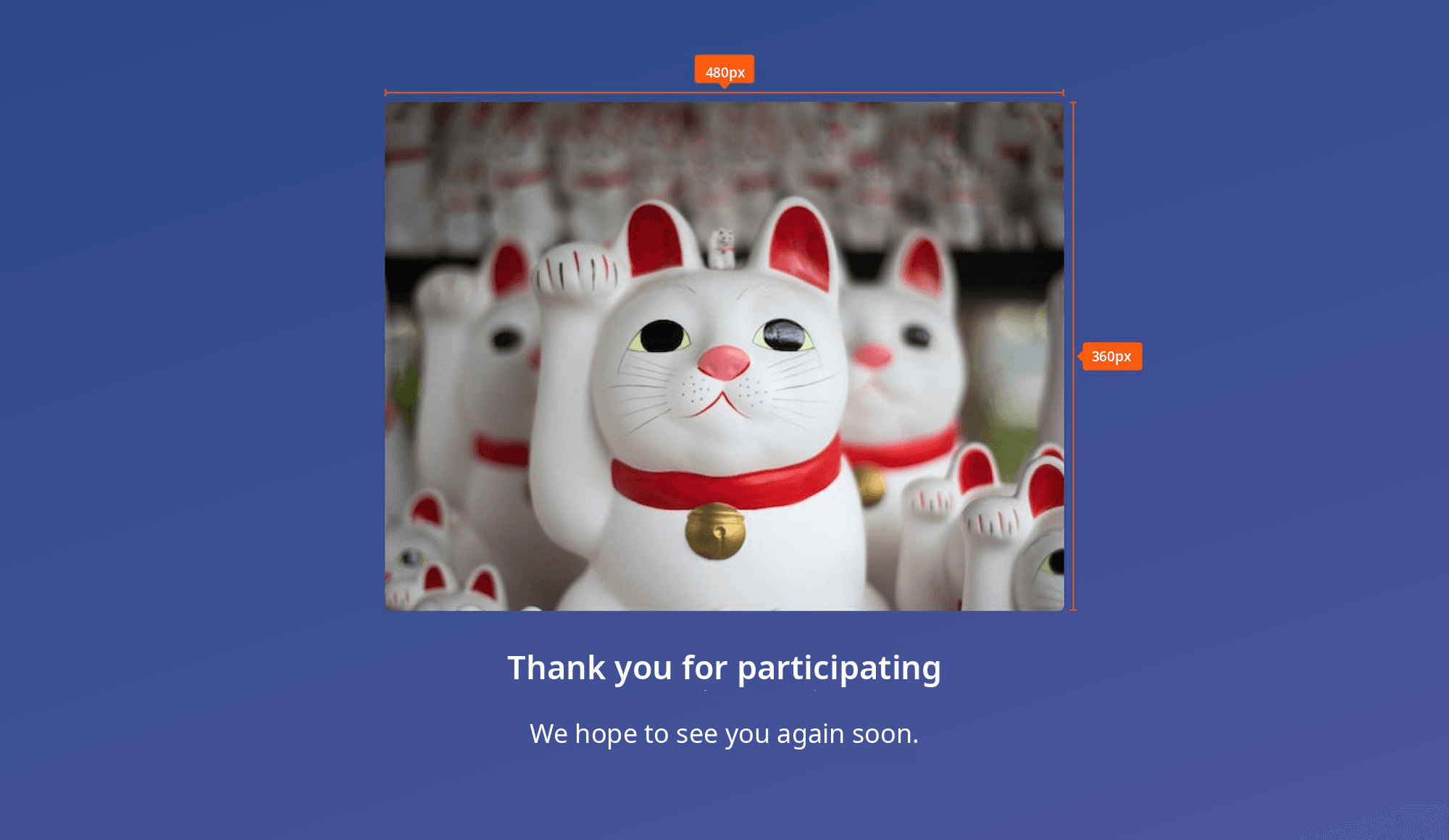
How to add an image to the Welcome Page or End Page
- Open your survey or form and go to “Create”.
- Select the “Welcome Page” or “End Page”.
- Enable “Image or Video”.
- Select “Image” and upload the file from your device.
You do not need to stretch the image to fill the entire display area. Instead, choose a clear image that suits the page content and check how it appears in the preview.
For more information about configuring these pages, see the Welcome Page guide or How to Customize the End Page.
Image dimensions for survey and form questions
You may want to add a supporting image to a survey question, such as a product photo for evaluation or an illustration that helps respondents understand what is being asked.
For images added directly to question content, the maximum display dimensions are 720 pixels wide and 300 pixels high.
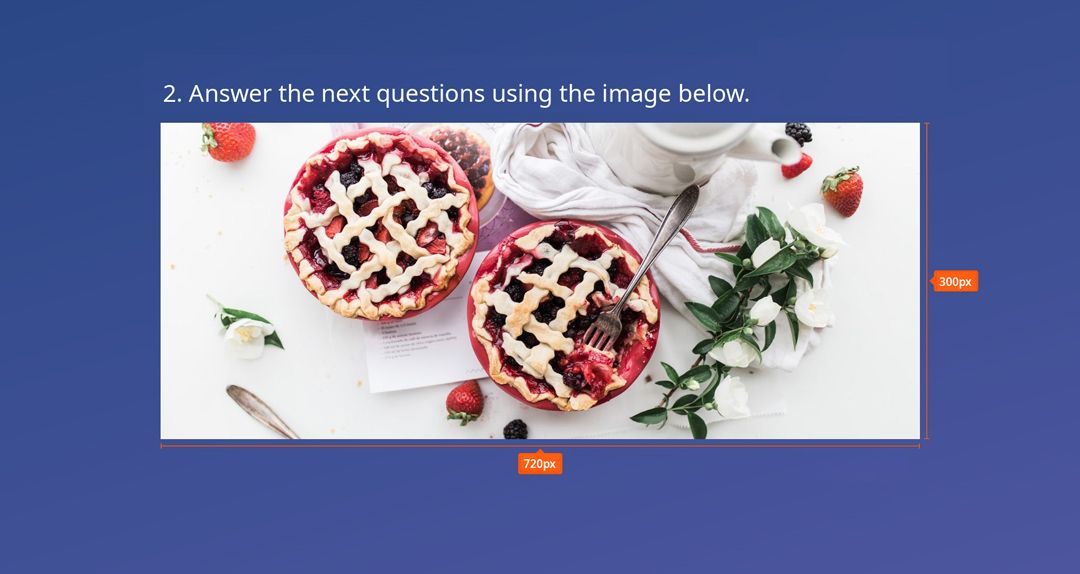
To add an image, open the question settings in Porsline, enable “Image or Video” and upload the image.
By default, it appears below the question text.
If you want to change its position, use “Layout” to adjust how the image is displayed on mobile and desktop separately.
Custom image positioning is available on the Pro and Enterprise plans.
After adding the image, preview the question on both devices, especially if respondents need to examine details before answering.
Image sizes for Picture Choice questions
A “Picture Choice” question lets respondents select an answer represented by an image rather than text alone. For example, you could ask participants to choose their preferred product or the image that best represents their opinion.
In Porsline, each answer option can have its own image. The display dimensions differ between desktop and mobile.
Picture Choice image dimensions on desktop
In the standard display, the maximum dimensions of each choice image are:
- Width: 155 pixels.
- Height: 142 pixels.
When you enable “Double display size”, the maximum dimensions become:
- Width: 338 pixels.
- Height: 244 pixels.
These enlarged dimensions are not calculated by simply doubling the standard width and height. Use the specified measurements for each display mode.
Picture Choice image dimensions on mobile
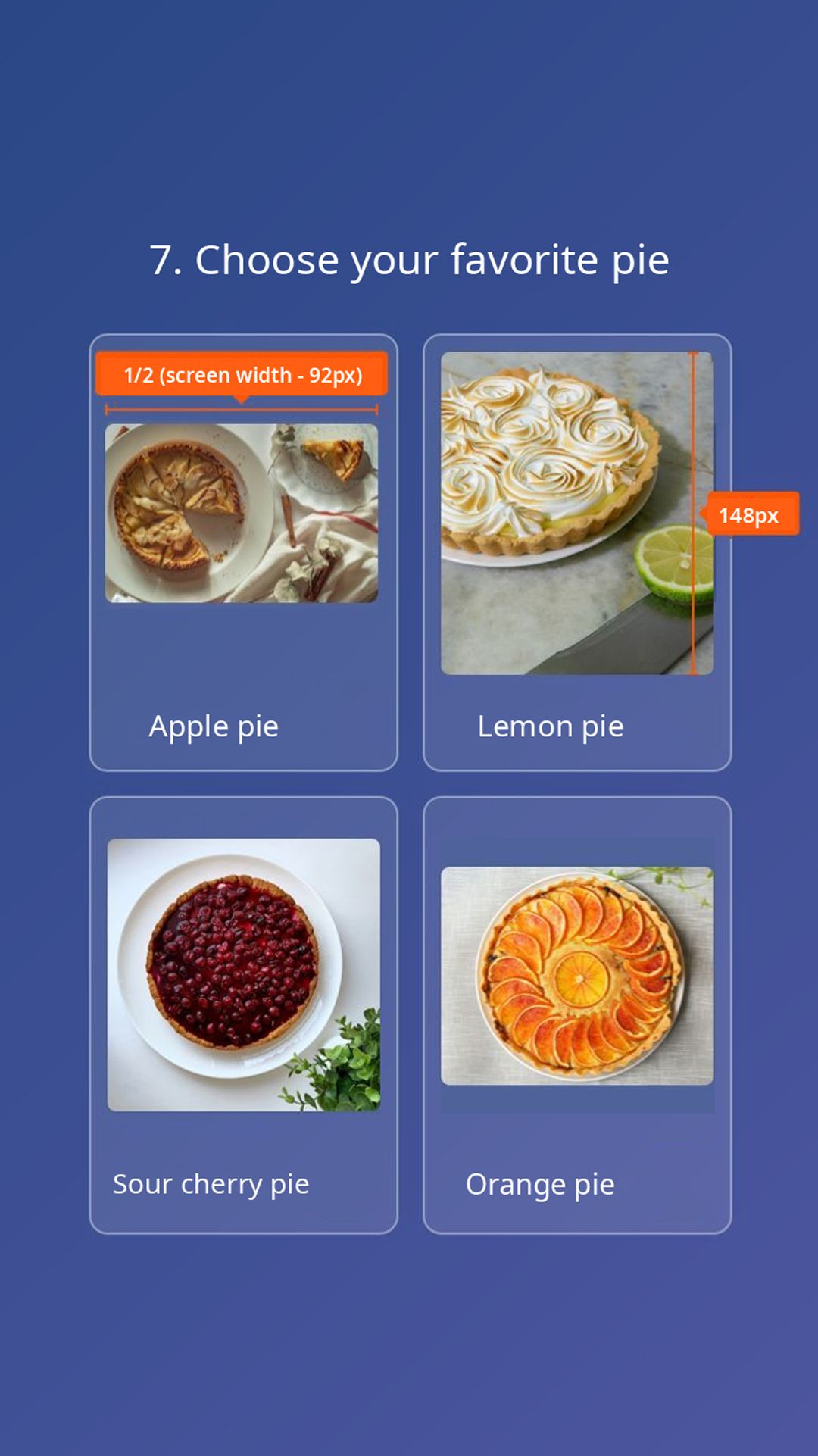
On mobile devices, the maximum image height is 148 pixels, while the width depends on the screen size.
The image width is calculated using this formula:
Choice image width = (screen width − 92) ÷ 2
For example, if the screen is 390 pixels wide:
(390 − 92) ÷ 2 = 149 pixels
In this example, the image width is 149 pixels.
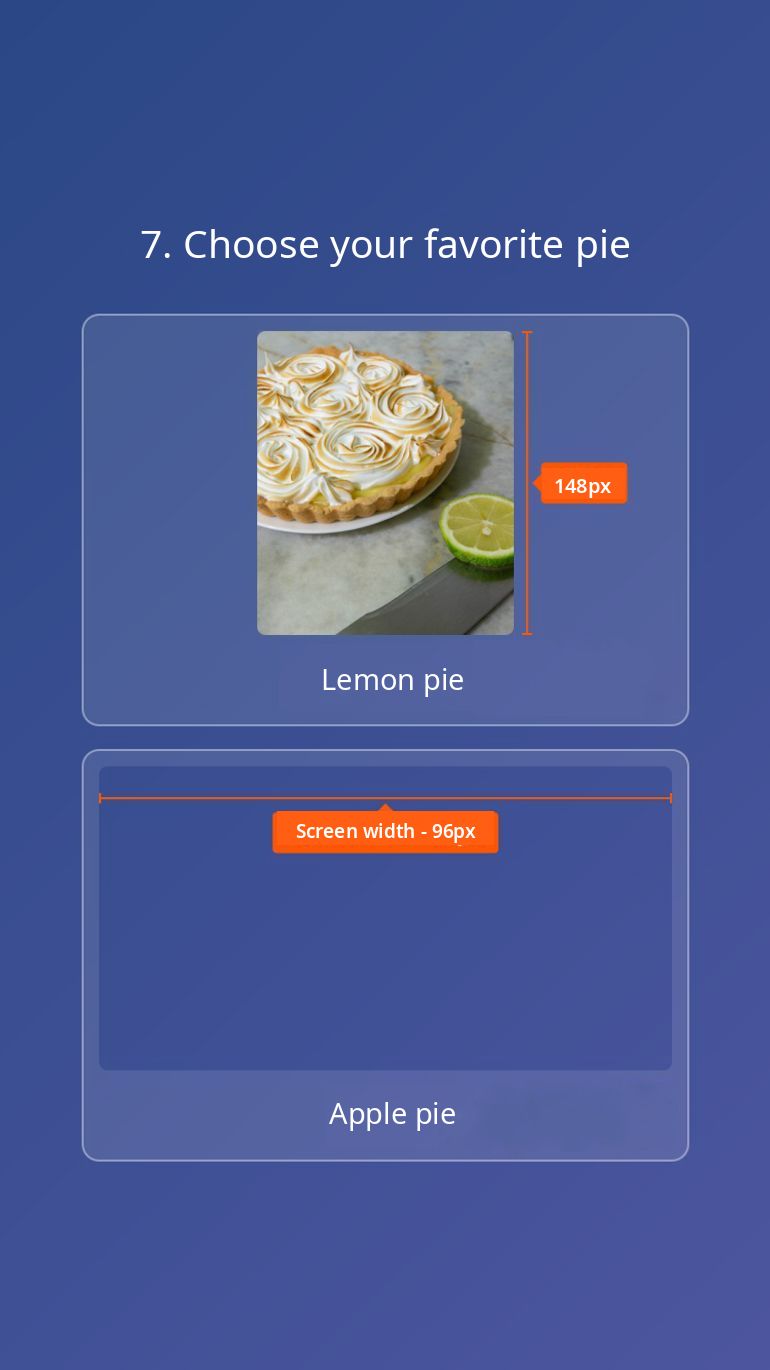
Because screen widths vary across mobile devices, there is no single fixed width suitable for every phone. Preview your Porsline survey or form on mobile to check that the images display clearly and fit the available space.
For instructions on adding images and configuring answer choices, see the Picture Choice Question guide.
Logo and favicon dimensions in Porsline forms
If you create surveys or online forms that reflect your organisation’s branding, you can add a custom logo and favicon in Porsline.
The logo appears on the form’s initial loading screen. This is different from an image added to the Welcome Page. A favicon is the small icon associated with your form in the browser.
There is no fixed pixel-dimension requirement for uploading a logo or favicon, but recommended dimensions can help you prepare the files.
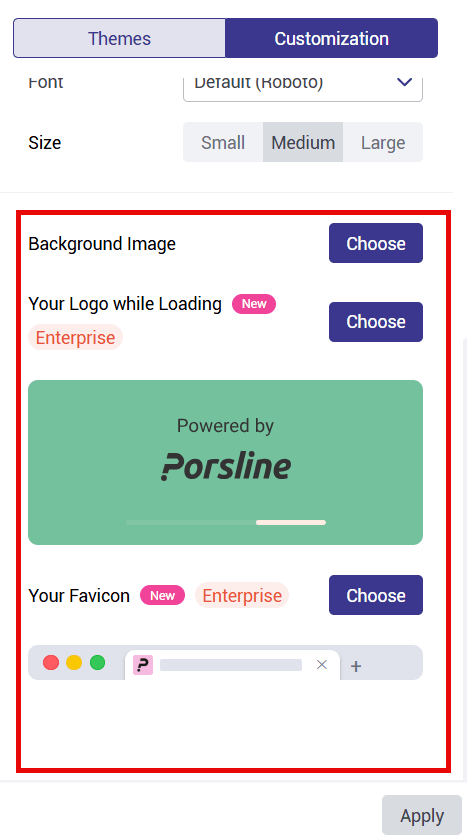
Recommended logo size
- Logo display area: 160 × 80 pixels.
- Recommended maximum logo file dimensions: 320 × 320 pixels.
When you upload a logo, Porsline shows a preview so you can check how it will appear in your form.
Recommended favicon size
The recommended maximum favicon dimensions are 512 × 512 pixels.
If you upload an image larger than these dimensions, it is automatically resized during upload to dimensions no greater than 512 × 512 pixels.
Choose an image that represents your brand clearly and remains recognisable when displayed at a small size.
Check your survey or form images before sharing
Once you have uploaded your images to Porsline, preview your survey or form on both mobile and desktop to make sure everything looks as expected.
Check that the images are clear, not stretched or distorted, and that any important details remain easy to read. Review the Picture Choice images in your selected display mode, and make sure the logo and favicon appear as intended.
If you experience problems displaying images in your Porsline surveys or forms, contact the Porsline support team for assistance.