One of Porsline's useful features is the ability to add calculations and scores to survey, form and quiz responses. You can assign numerical values to answer choices, create calculation rules and use the results for scoring or categorising responses through the available settings.
Whether you're creating an online quiz, a product order form or a personality assessment, calculations can help you assign scores or numerical values to responses and automatically calculate a final result.
In this guide, you'll learn how to add calculations and scoring in Porsline, with examples covering order totals, online quizzes, rating questions and result analysis.
Note: Scores and Calculations are available on the Pro and Enterprise plans. Calculated Variables and multilevel filters require Enterprise.
How to Calculate Prices in an Online Order Form
Suppose you want to create an online order form for your store using Porsline. Each product has a different price, and customers can enter the quantity they want to purchase. The final amount should be calculated based on the selected product and quantity.
In the “Report” phase, you can open the “Results Table” to review submitted responses and calculated order totals. You can also use Answer Piping and variables to display the payable amount to the customer, then add an online payment step if the required payment method is available and configured in your account.
To get started, log in to Porsline and create a new form. Add a question that displays your available products so customers can select the product they want before moving to the next step.
Assign a Price to Each Product Using Calculations

First, define the price of each product in your form.
- Open the “Create” phase in Porsline.
- Hover over the question containing your product choices.
- Select “Calculations”.
- Add a calculation rule for each product option.
In the calculation settings, specify the numerical value to be added to the default score variable when the respondent selects a particular product.
For example, if a pencil costs $1.00 , configure the calculation so that selecting “Pencil” automatically adds the numerical value 1 to the default score variable.
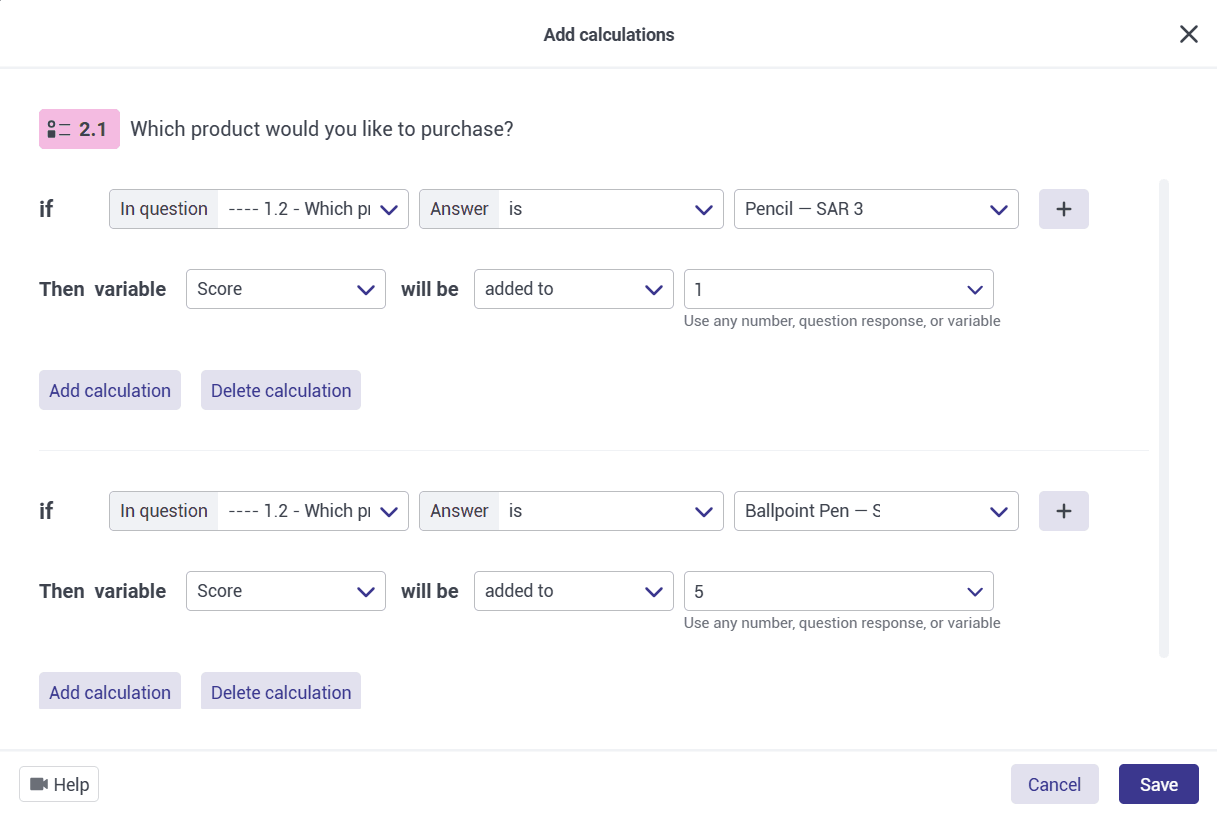
Repeat this process for the other products, assigning the appropriate price to each option.
Let Customers Enter the Product Quantity
Next, add a “Number” question so customers can enter the quantity they want to order.
Write the question text and use the “Min” and “Max” settings to define the permitted quantity range.
You can also type @ in the question text to insert a previous answer or an available variable. This lets you display the name of the product selected in the previous question.
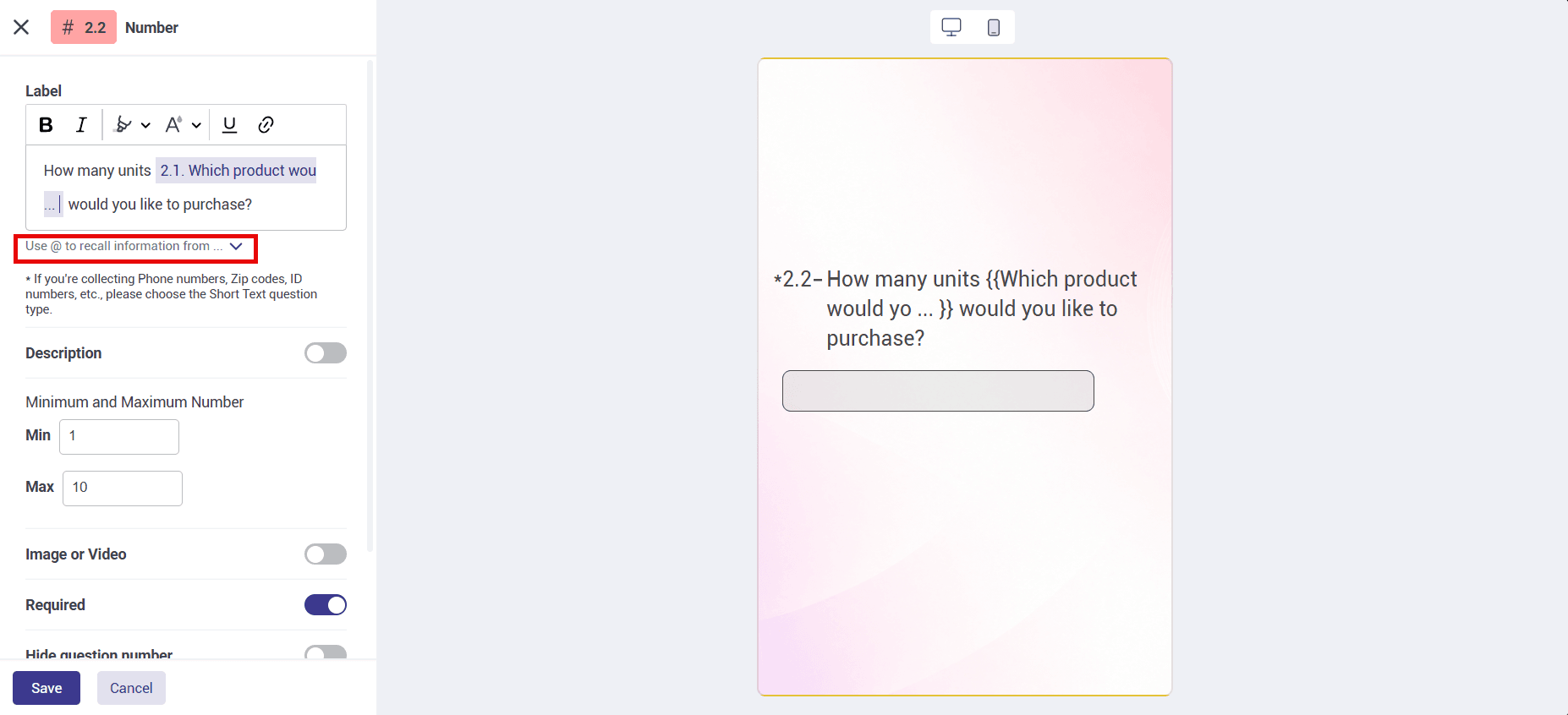
For example, if the customer selected “Pencil”, the next question could read:
“How many pencils would you like to order?”
For more information about configuring numerical input, see the Number Question guide.
Calculate the Final Order Amount Automatically
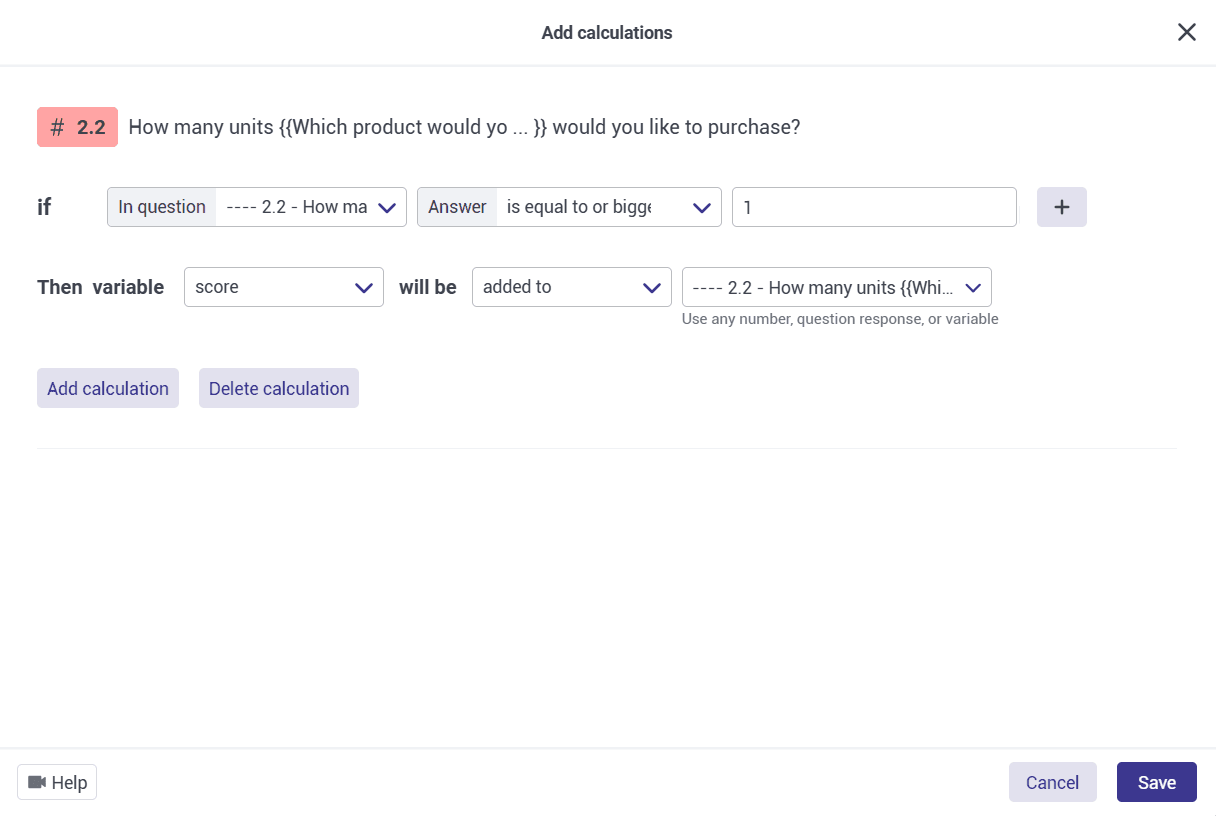
To calculate the final amount based on the quantity entered, open “Calculations” for the Number question.
Set the answer condition according to the minimum and maximum permitted quantities. Then configure the calculation to multiply the default score variable, which contains the product price, by the quantity entered by the customer.
The final amount is calculated automatically.
For example, if one pencil costs $1.00 and the customer orders two pencils:
$1.00 × 2 = $2.00
The final order amount is therefore $2.00 .
You can use this result to display the payable amount or continue configuring an online payment step using the options available in your account.
Add Calculations and Scores to Online Quizzes
You can also use Porsline calculations to assign points to quiz answers and automatically calculate each participant's final score.
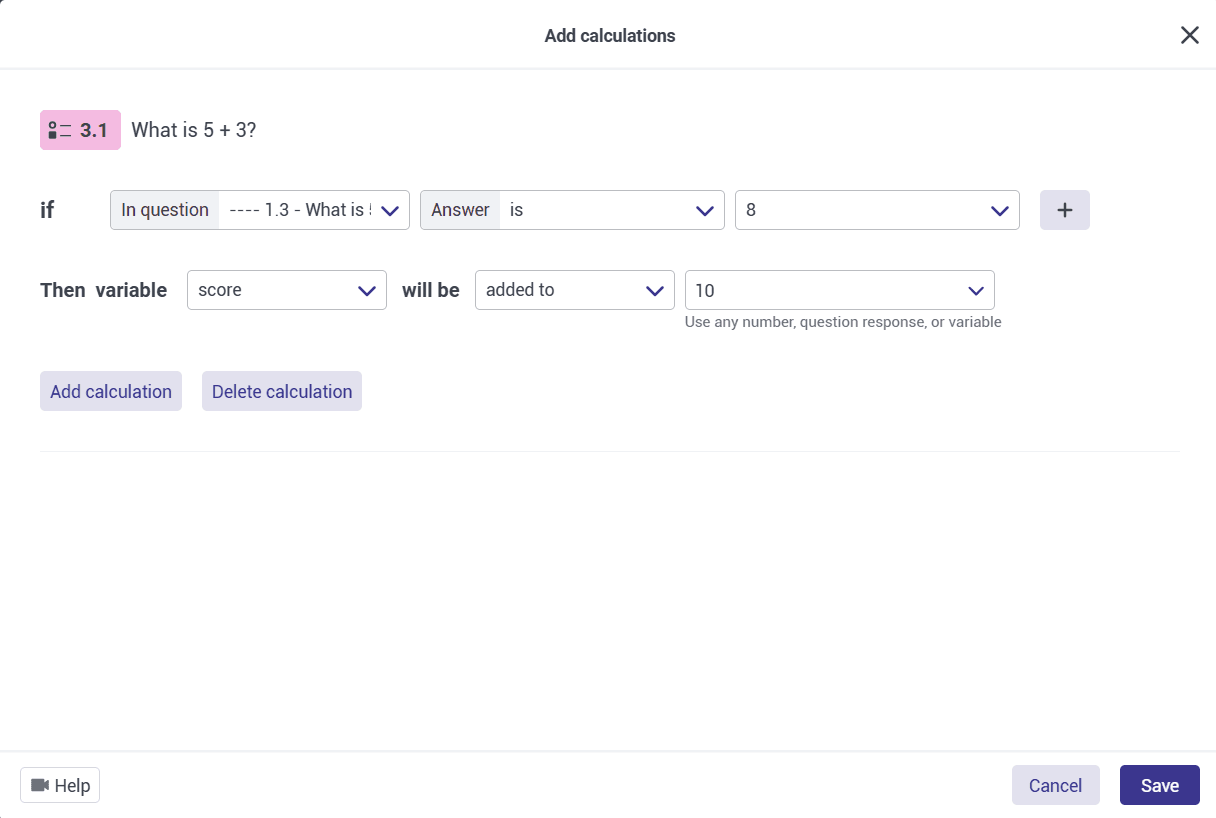
Suppose you're creating an online quiz in which each correct answer has a specific score. Instead of calculating the results manually after the quiz, you can set up calculation rules to add points whenever a participant selects a correct answer.
To do this, open the question in the “Create” phase and select “Calculations”.
Choose the correct answer and configure the calculation to add the required number of points to the default score variable when that answer is selected.
Repeat the process for the remaining questions, using the score assigned to each one.
Calculate Scores Based on Multiple Answers
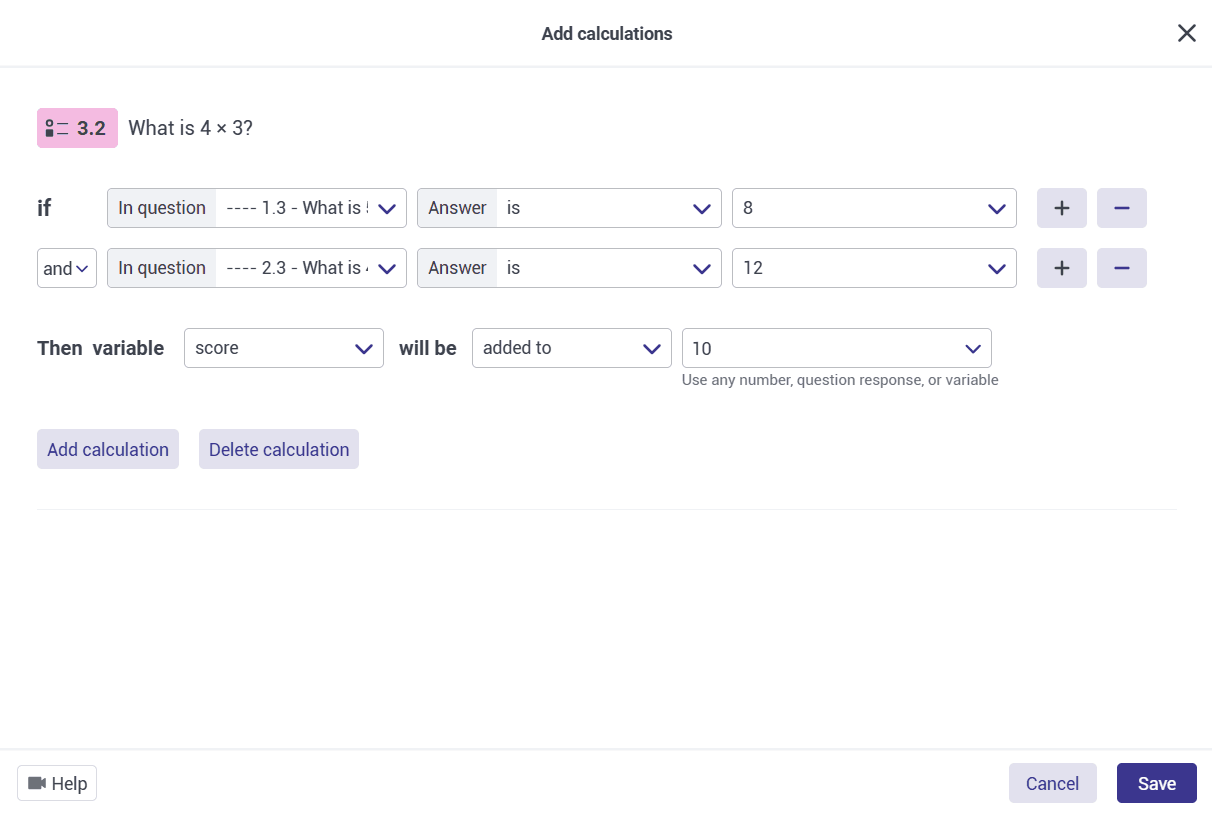
You can also create calculations that depend on answers to previous questions.
For example, you may want to award a particular score only when a participant answers two specific questions correctly.
In this case, you can define a calculation that checks both answers and adds the specified points when both conditions are met.
Review the other scoring rules in your quiz to make sure the same points are not added more than once unintentionally.
At the end of the quiz, Porsline calculates the final score according to the rules you've defined. You can review the result in the “Results Table”.
You can also display the participant's score using variable piping on the “End Page”. For details, see How to Customize the End Page in Porsline.
Apply Calculations and Scoring to Opinion Scale and Rating Questions
Opinion Scale and Rating questions are commonly used in surveys, including employee job satisfaction surveys.
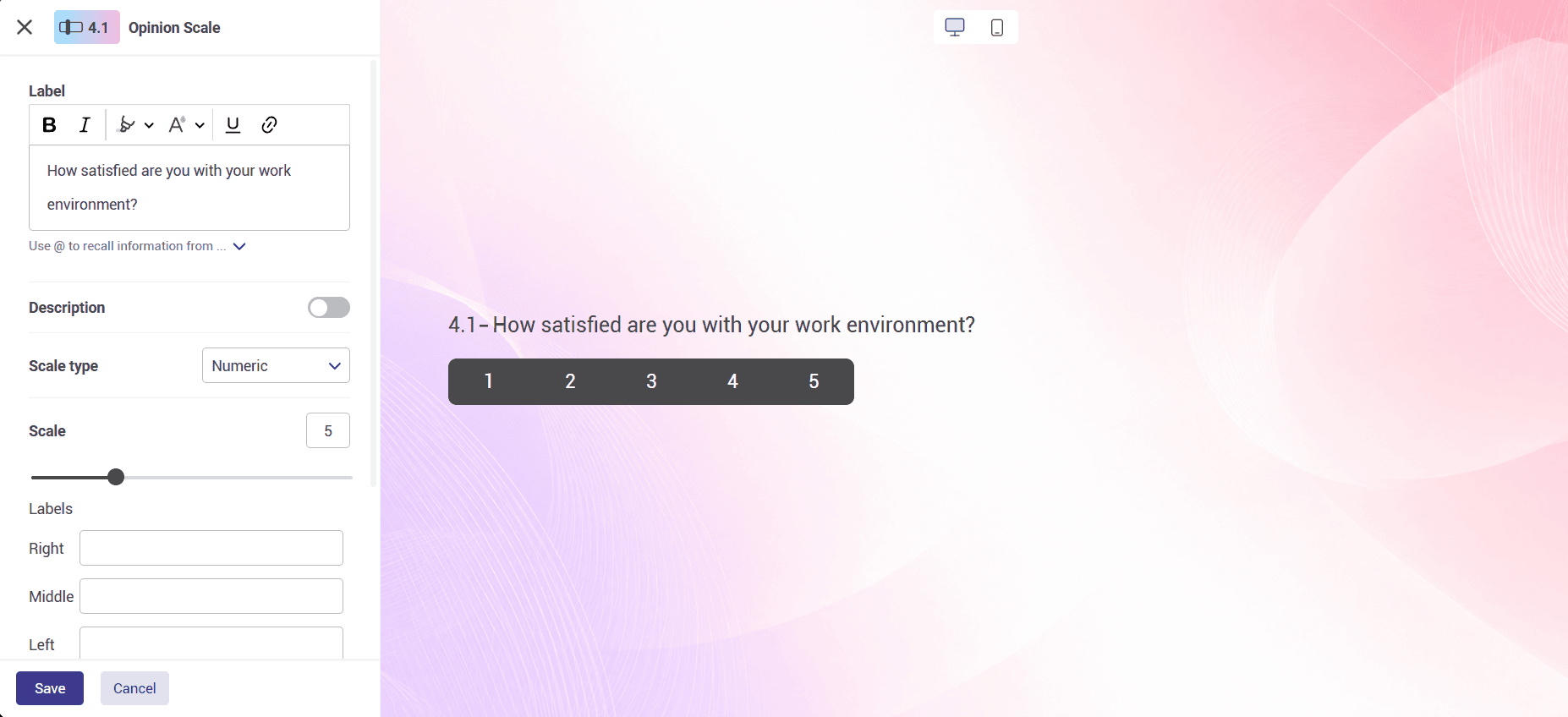
A job satisfaction survey helps organisations assess how employees feel about their work, understand their concerns and challenges, and evaluate different aspects of their experience within the organisation.
When creating this type of survey in Porsline, you can assign numerical values to responses and combine them to calculate an overall score.
The resulting score can be used as an indicator of job satisfaction, based on the scoring method you've defined.
How to Add Up Scores from Rating Questions
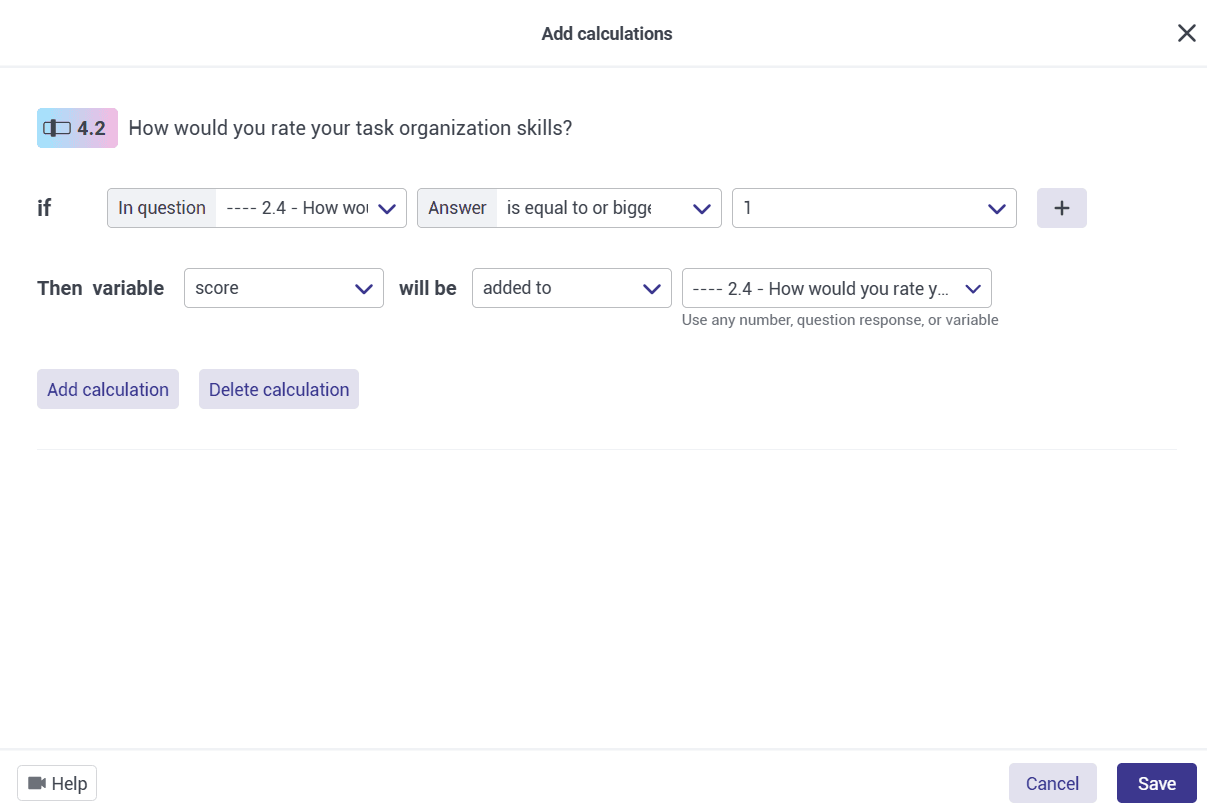
To apply calculations to Opinion Scale or Rating questions:
- Open the question in the “Create” phase.
- Select “Calculations”.
- Set a condition that covers the available response values.
- Configure the calculation to add the selected numerical response to the score variable.
- Save the settings and repeat the process for the other questions you want to include.
For example, if a question uses a scale from 1 to 5, you can set a condition that accepts values greater than or equal to the minimum value of the scale. Then add the selected response value to the score variable.
Porsline will automatically add up the values from the questions you've configured.
You can then interpret the total according to your survey's scoring criteria. If some questions are worded in opposite directions, make sure their scoring is adjusted before interpreting the final result.
View and Analyse Scores in the Results Table and Charts
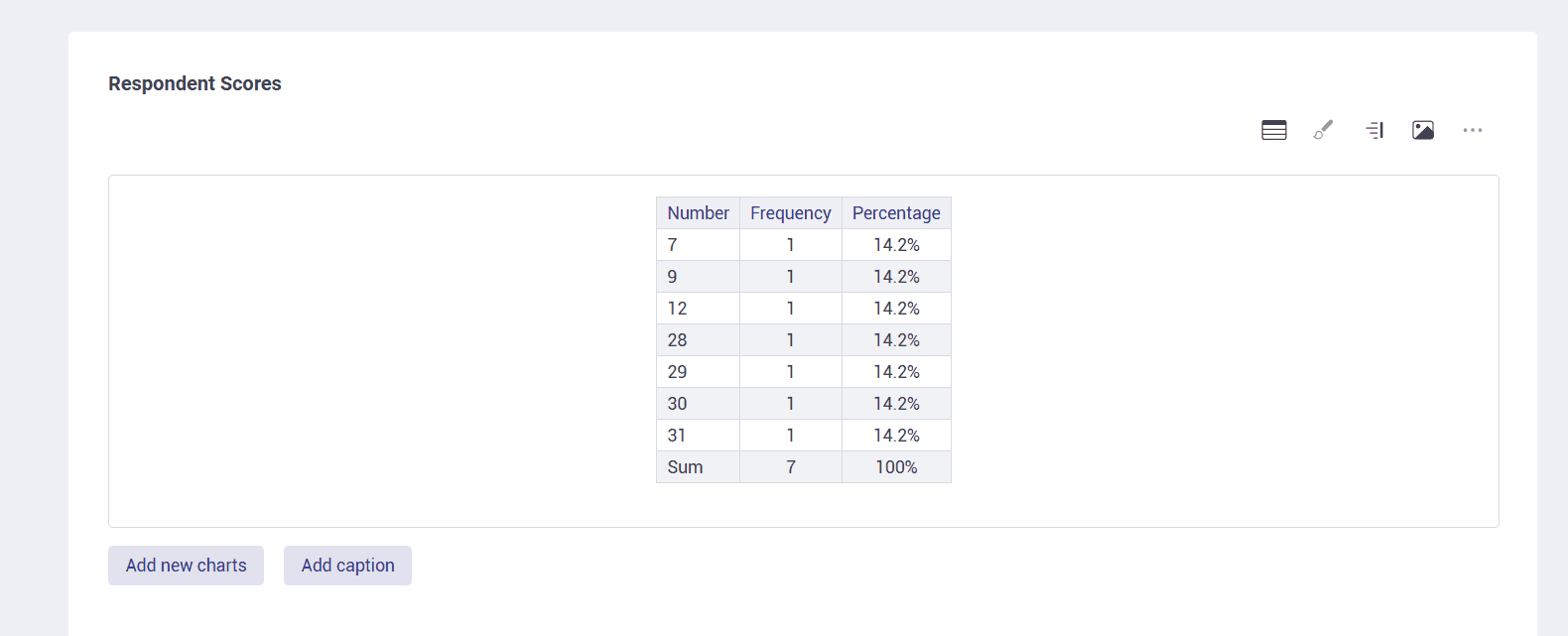
After collecting responses, go to the “Report” phase in Porsline and open the “Results Table” to review participants' answers and calculated scores.
You can also use “Charts and Analysis” to view score distributions and examine the results visually.
Recalculate Scores After Updating Calculations
If you've changed the scoring rules or calculations in your survey or quiz, you can use the recalculation feature to update the calculated results.

To do this, go to “Report” → “Results Table” and click the fx button, labelled “Recalculate variables”, in the toolbar above the table.
After you confirm the action, Porsline recalculates all scores and calculations defined in the form. You can then review the results in the Results Table.
Filter Quiz Results by Score
If you need to analyse a specific group of responses, Enterprise provides multilevel filters that allow you to narrow the data by score or other criteria.

Suppose you've created an online quiz with a maximum score of 6, and you want to see how many participants received full marks.
To do this:
- Go to “Report” and open “Charts and Analysis”.
- Open the filtering controls.
- Create a new filter and give it a descriptive name, such as “Full Marks”.
- Select the score variable and set the condition to equal 6.
- Save the filter and review the results.
You can add more conditions using the + button if you need to narrow the results further.
You can also adjust which question charts are displayed, allowing you to focus on the information relevant to your analysis.
Once the filter has been saved and applied, the displayed results and charts reflect the conditions you've defined. You can then see how many participants achieved the maximum score.
For more information about reporting and filtering, visit the Porsline video tutorials, including the tutorials on advanced reporting and Report Builder.
If you have questions or encounter a problem while setting up calculations and scores in Porsline surveys, forms or quizzes, contact the Porsline support team for assistance.