Imagine you've created an online quiz and want to calculate each section's score separately, then display both the individual scores and the final result to the participant. Or perhaps you've created an order form and want to show customers the cost of each product category alongside the total order amount.
You might also be running a psychological or personality assessment where each dimension needs to be scored separately and presented with an appropriate interpretation.
For these scenarios, you can use Calculated Variables in Porsline's Enterprise plan to create multiple variables within a survey or form and configure separate calculations for each one, rather than relying on a single overall score.
In this guide, we'll use an online quiz with three sections: Mathematics, Chemistry and General Knowledge. Our goal is to calculate each section's score independently, combine them into a final score and display the results to the participant.
Create Calculated Variables in Porsline
After creating the quiz, adding the questions and organising them into three sections, go to the “Create” phase and open “Calculated Variables”.
You'll see the default score variable, which starts with an initial value of zero.
Now add three new variables:
- Mathematics
- Chemistry
- General Knowledge
Set each variable to a numeric type, give it an initial value of zero and save the settings.
Depending on your calculation requirements, you can also assign a different initial value to each variable.
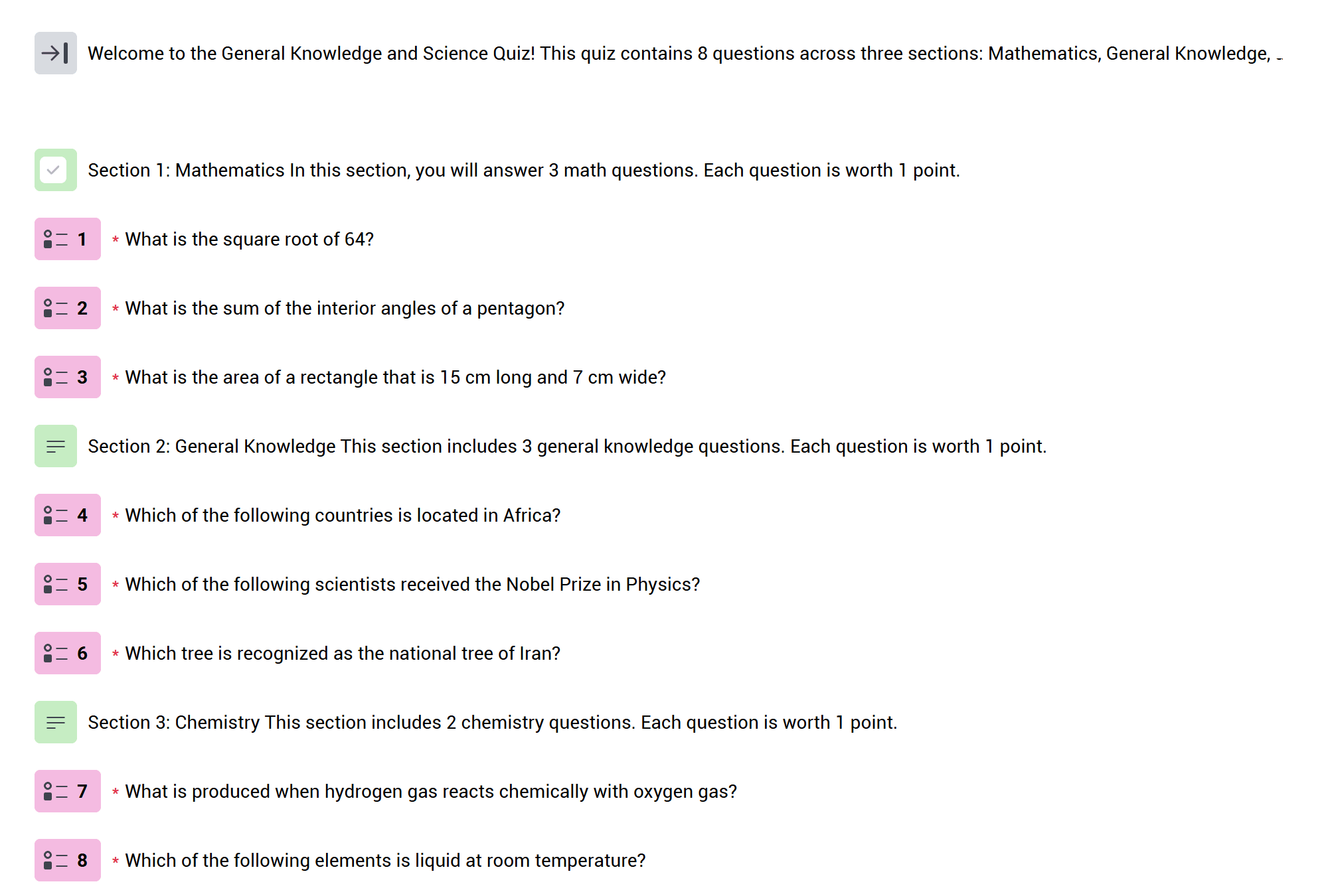
Assign Scores to Questions Using Calculated Variables
Once you've created the variables, start assigning scores to the questions in each section.
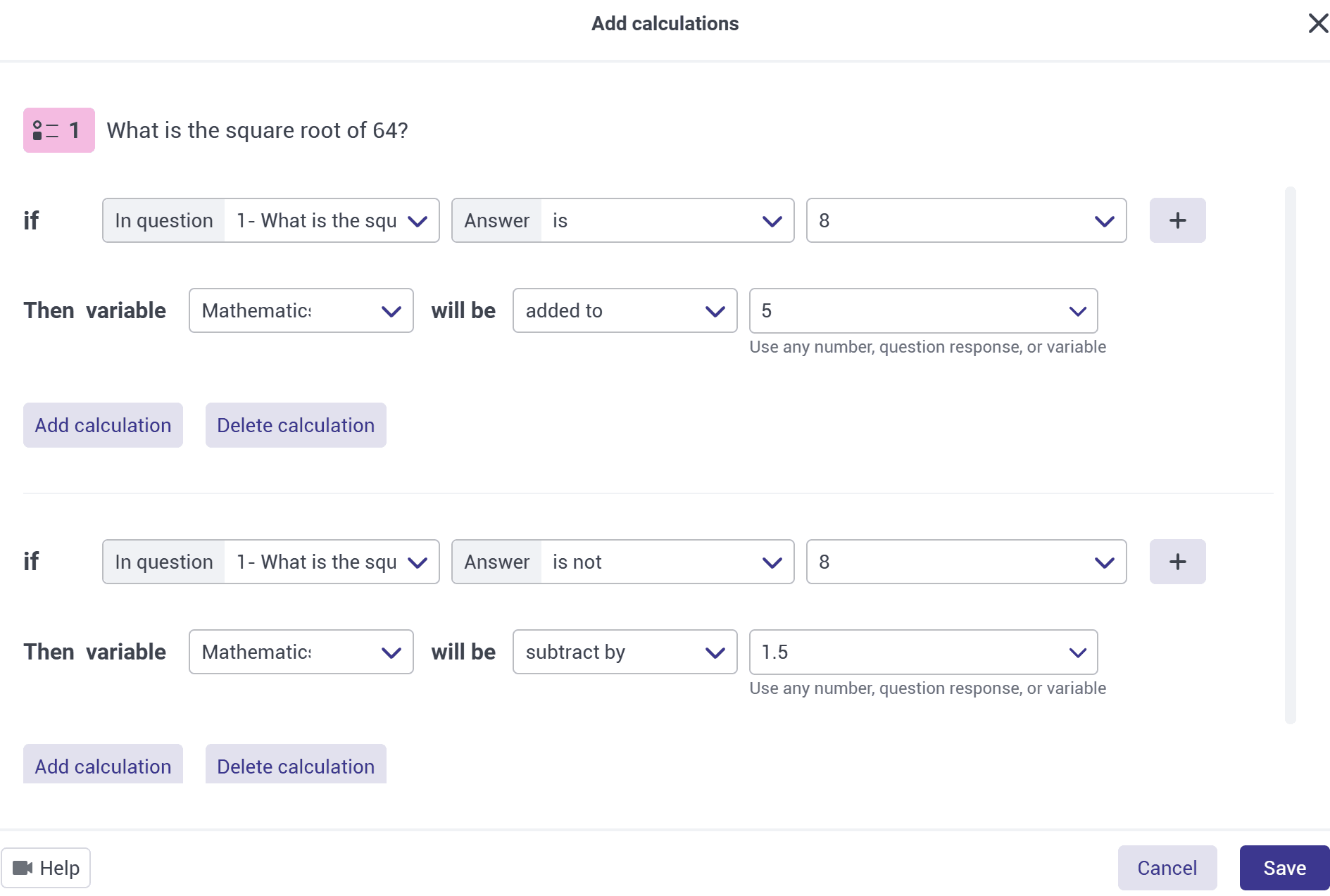
Begin with the Mathematics questions. Open “Calculations” for each question and specify how many points should be added to the “Mathematics” variable when the correct answer is selected.
If your quiz includes negative marking, use the subtraction operation to deduct the required number of points for incorrect answers.
Make sure each question updates the variable associated with its section. For example:
- Mathematics questions add points to the “Mathematics” variable.
- Chemistry questions add points to the “Chemistry” variable.
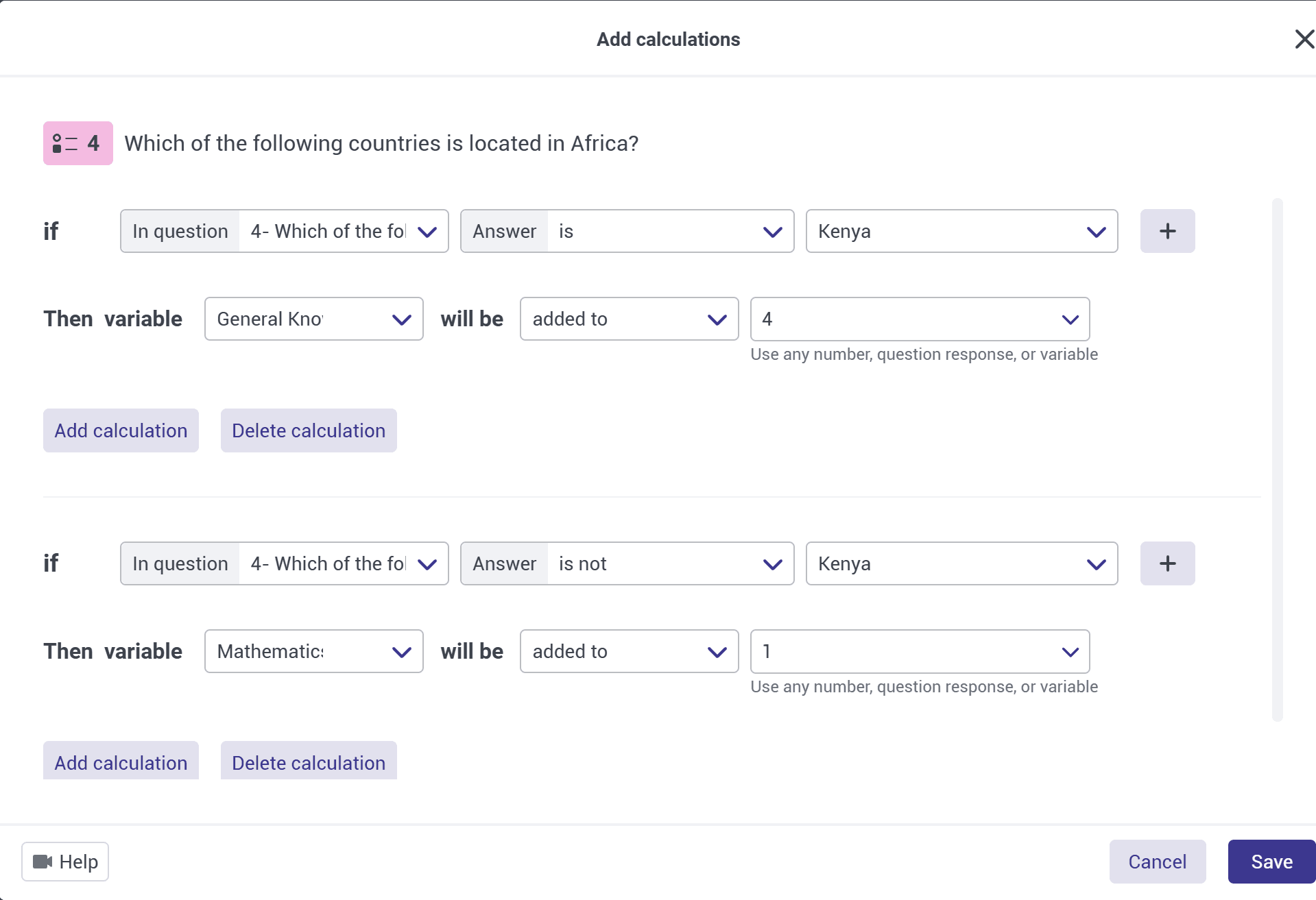
- General Knowledge questions add points to the “General Knowledge” variable.
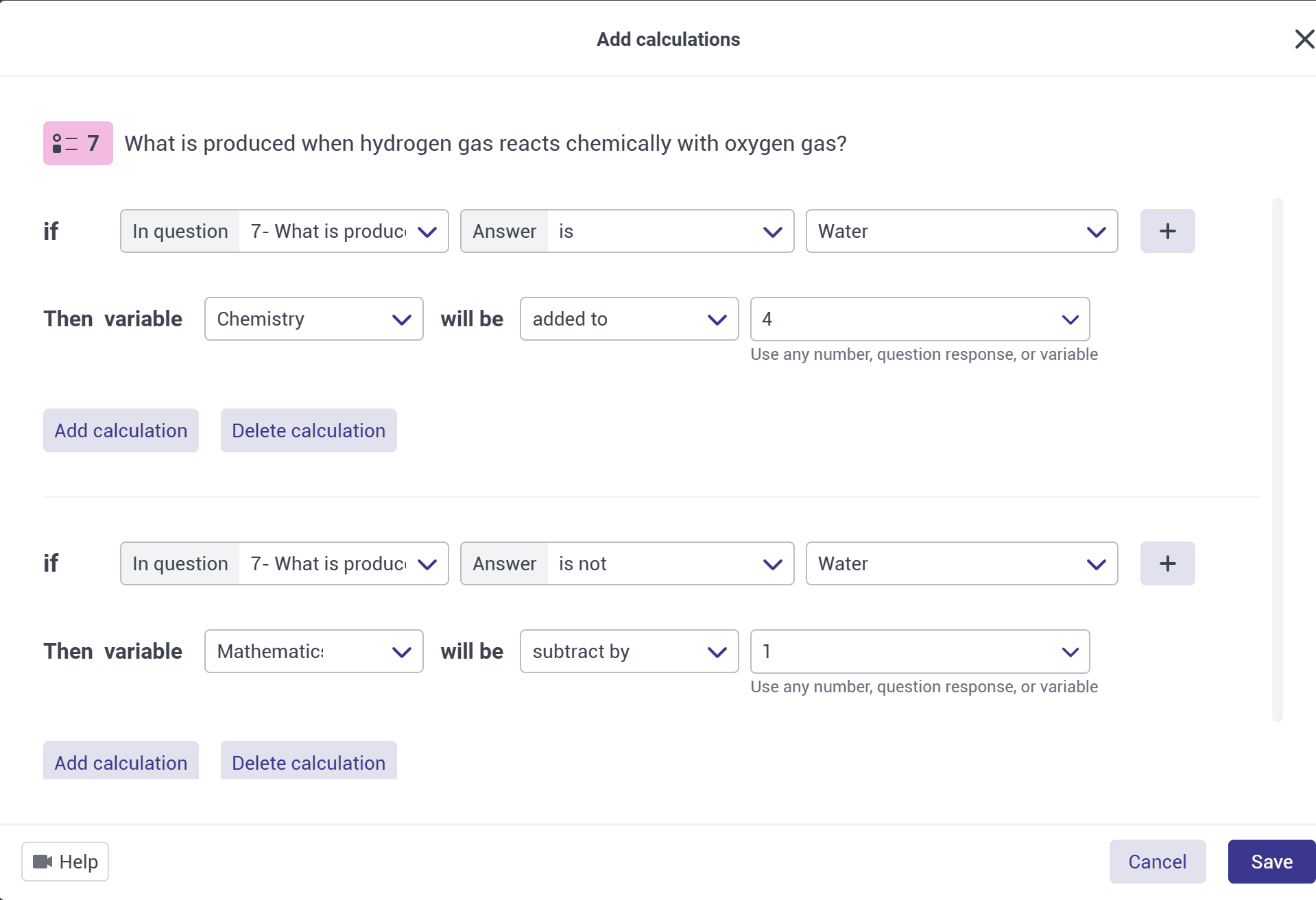
Repeat this process for all the questions until each section has its own calculated score.
If you're new to scoring rules, see How to Add Calculations and Scores to Online Forms in Porsline.
Calculate the Final Score from Multiple Variables
After configuring the scores for all three sections, the next step is to calculate the participant's overall score.
On the final question of the quiz, open “Calculations” and add a new calculation rule.
Start with the “Mathematics” variable and define a condition that includes the possible scores for that section.
In our example, if the lowest possible score is zero, set the condition as follows:
If the Mathematics variable is greater than or equal to zero, add its value to the default score variable.
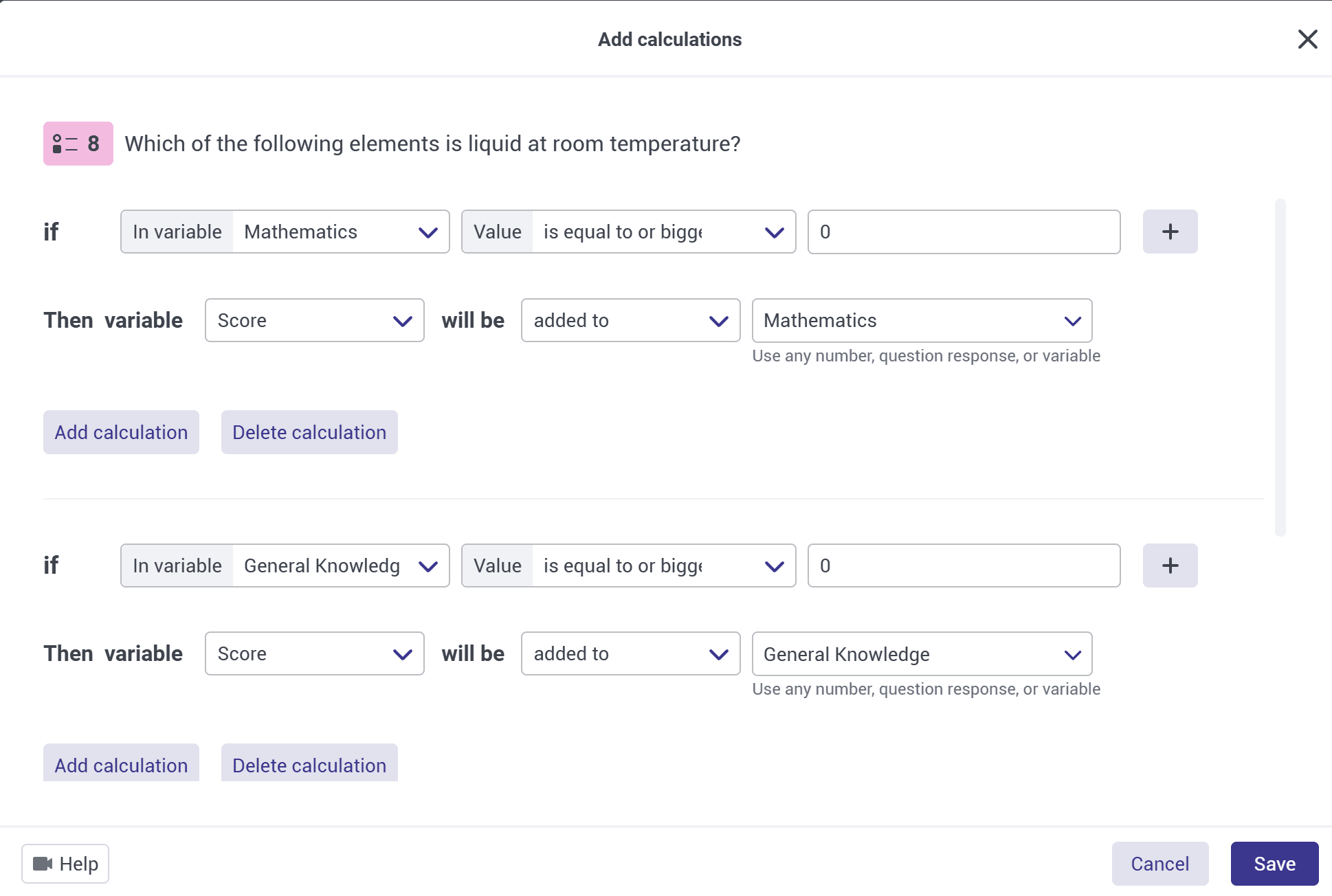
Make sure the condition reflects the lowest possible score in your assessment. If your quiz allows negative scores, adjust the condition so that negative values are included rather than using zero as the minimum.
Repeat the same process for “Chemistry” and “General Knowledge”, adding each variable's value to the default score variable.
The final result will be:
Final score = Mathematics + Chemistry + General Knowledge
Check that each section's score is added only once to avoid counting the same points twice.
Display Section Scores and the Final Result to Participants
After setting up the calculations, you can display the quiz results on the “End Page”.
Open the End Page and enter the text you want participants to see. Type @ to select and insert each calculated variable into the page.
For example, your End Page could show:

Your Quiz Results
Your Mathematics Score [Mathematics variable value]
Your General Knowledge Score [General Knowledge variable value]
Your Chemistry Score [Chemistry variable value]
Your final score [Default score variable value]
Insert the variables from the list that appears after typing @. Typing their names as ordinary text will not insert the calculated values.
In addition to displaying the scores on the End Page, you can configure notifications to send the results to participants by email or SMS, using the notification options available on your Enterprise account.
For more information about displaying variables and customising the page, see How to Customize the End Page in Porsline.
View Calculated Variables in Reports and Charts
After participants submit their answers, go to the “Report” phase in Porsline and open the “Results Table”.
Alongside each participant's answers, you'll see separate columns for the variables you've created, allowing you to review the Mathematics, Chemistry and General Knowledge scores as well as the final result.
In “Charts and Analysis”, you can also review a separate chart for each variable. This makes it easier to examine performance across the different quiz sections.
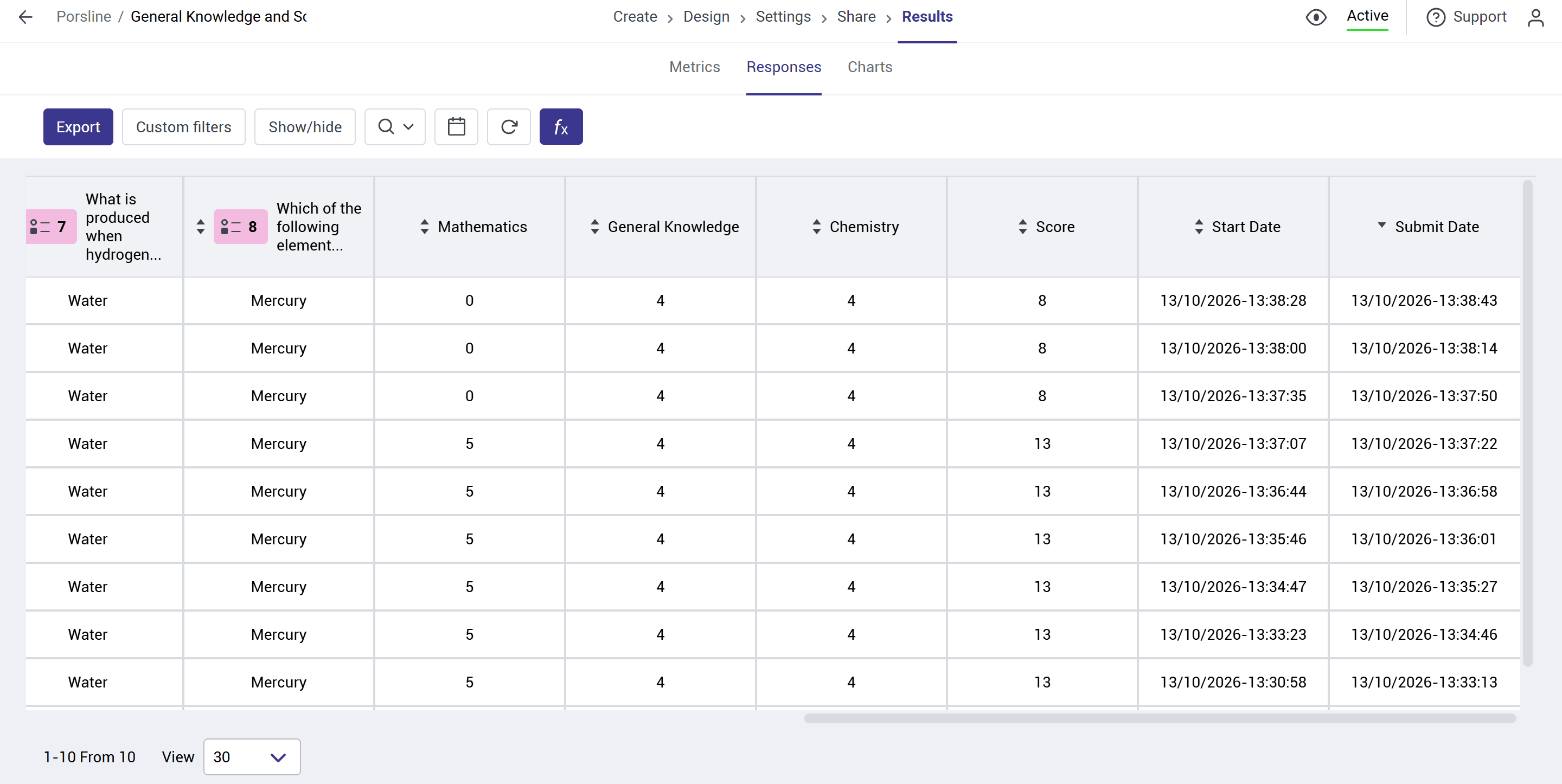
If you update the scoring rules after collecting responses, you can use “Recalculate variables” in the Results Table to update the calculated results. Previously sent notifications are not sent again, and scores already transferred to Google Sheets are not updated automatically.
To learn more about multiple calculated variables, advanced calculations and reporting, watch the Porsline Enterprise tutorial.
If you need assistance with Calculated Variables or advanced formulas in your Porsline surveys, forms or quizzes, contact the Porsline support team.