Child Care Registration Form Template
Looking for a smarter, easier way to register children in your preschool or daycare center?
This free child care registration form template helps you collect parent and student data effortlessly — and it’s fully customizable to suit your center’s needs.
This article helps school principals, kindergarten directors, and educational supervisors streamline the enrollment process for children using a customizable, ready-to-use child care registration form. It explains the importance of digitizing the process, outlines key form elements, and shows how to build the form using Porsline without any technical skills.
What is a Child Care Registration Form?
A child care registration form is a structured document used to collect essential information from parents or guardians when enrolling their children in daycare, preschool, or kindergarten programs. This form typically includes the child’s personal details, schedule preferences, emergency contacts, and parental information.
Whether used for full-time programs or part-time care, the registration form serves as the foundation for managing enrollment, organizing class schedules, and communicating with families. It ensures the school or center has the necessary details to provide safe, personalized, and compliant care.
In modern education systems, especially for early childhood institutions, replacing paper forms with an online registration form significantly improves accuracy, saves time, and creates a more professional experience for both parents and administrators.
Start now for free and take your enrollment process to the next level.
Why Is This Form Important for Child Care Centers?
Using a child care registration form is more than just a procedural requirement — it's a strategic tool that helps early education institutions operate efficiently and professionally. Here's why it matters:
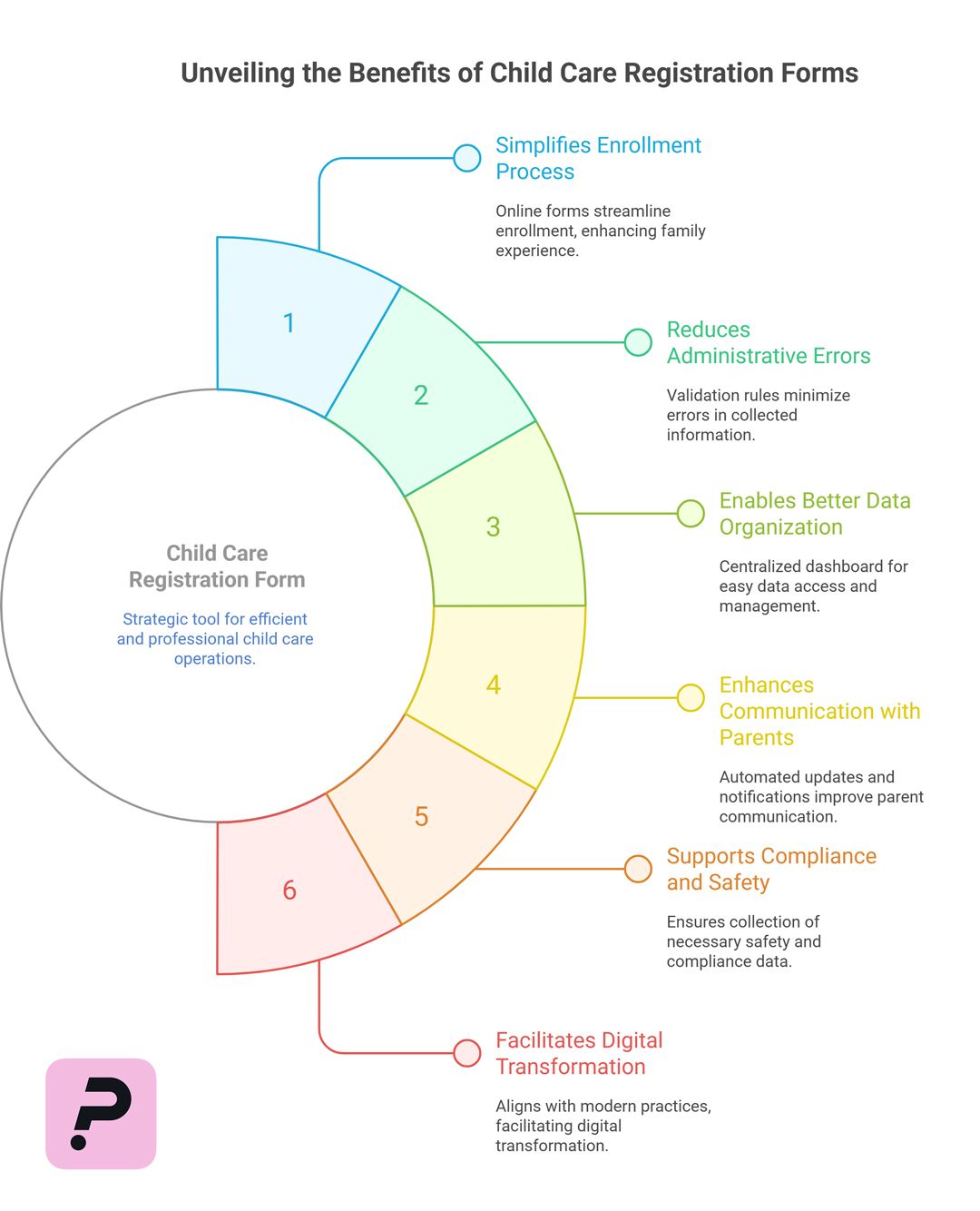
1. Simplifies the Enrollment Process
Parents can fill out the form online from any device, eliminating the need for in-person paperwork or repetitive phone calls. This convenience enhances the family experience from day one.
2. Reduces Administrative Errors
Online forms use validation rules and required fields, helping you avoid missing or incorrect information — such as incomplete contact details or child health records.
3. Enables Better Data Organization
All submissions are securely stored and easily accessible in a centralized dashboard. You can quickly search, filter, and export data as needed for planning and reporting.
4. Enhances Communication with Parents
Collected data like phone numbers and email addresses can be automatically used for updates, notifications, or confirmations. You can even send reminders before the school year starts.
5. Supports Compliance and Safety
Having a standardized form ensures that you collect all necessary emergency contacts, medical needs, and legal permissions required for proper child care operations.
6. Facilitates Digital Transformation
Moving away from paper forms to digital workflows aligns your school or center with modern, efficient practices — making it easier to scale and adapt to changing educational needs.
Common Types of Child Care Registration Forms
Not all child care centers or preschools follow the same registration approach. Depending on your structure, program types, and enrollment cycles, the registration form may vary. Below are the most common types:
1. First-Time Enrollment Form
Used to register children who are attending the daycare or preschool for the first time. This form includes comprehensive data collection such as personal info, preferred schedule, medical conditions, and parental contacts.
Use case: Start-of-year registrations for new families.
2. Mid-Year Enrollment Form
Designed for enrolling children who join after the academic year has already begun. It may include conditional questions to handle exceptions or late-start protocols.
Use case: Families moving mid-year or transferring from another center.
3. Annual Re-Enrollment Form
For children returning for a new academic year. This form typically asks parents to confirm or update previously submitted data without starting from scratch.
Use case: Renewing enrollment of existing students.
4. Part-Time Attendance Form
Built for centers that offer part-time or flexible attendance (e.g., 2 or 3 days per week). Parents can specify which days and time blocks suit them best.
Use case: Preschools or daycares offering hourly or part-week programs.
5. Pre-Interview Intake Form
Used by some institutions before conducting interviews or orientation. It collects basic information and helps staff prepare for a more personalized meeting with the child and family.
Use case: Selective admission programs or personalized onboarding.
Porsline allows you to build any of these forms — or combine them into a single smart form — using conditional logic, dynamic fields, and workflow automation.
Recommended Questions to Include in Your Registration Form
To ensure a smooth and efficient registration process, your child care form should be structured around clear, purposeful questions. Below is a recommended list of questions, their types, and the purpose behind each — presented in an easy-to-reference table format:
| Question | Question Type | Purpose |
|---|---|---|
| How many children are you registering? | Multiple Choice | Determine if additional fields need to appear |
| Child’s full name and age | Long Text | Capture key personal data for each child |
| Preferred start date or program session | Multiple Choice | Organize enrollments by start periods |
| Which days would you like your child to attend? | Multiple Choice (Mon–Fri) | Set attendance patterns |
| What time block suits you best? | Single Choice (Morning / Afternoon / Full Day) | Align with center's scheduling |
| Parent/Guardian full name | Short Text | Establish main contact |
| Contact phone number | Short Text (Phone Field) | Enable quick communication or emergencies |
| Email address | Send confirmations and future updates | |
| Any medical conditions or special needs? | Long Text | Ensure safety and personalized care |
| How did you hear about us? | Multiple Choice | Track your marketing sources |
| Additional comments or notes | Long Text | Collect special requests or preferences |
| Do you agree to the privacy policy? | Multiple Choice (Required) | Ensure legal compliance |
Steps to Create a Child Care Registration Form on Porsline
With the ongoing digital transformation in the education sector, building an online child care registration form is no longer optional — it’s essential. Using Porsline, you can design a professional, fully branded form that reflects your institution's identity and provides a smooth registration experience for parents — all without needing any technical skills.
1. Log in to Porsline
Start by logging in to your Porsline account, then click “Create New Survey” and select the Create new survey to build your form from scratch — or choose a ready-made template "Pick a template" and customize it to suit your needs.
2. Set Up a Custom Welcome Page
Begin by creating a welcoming introduction screen that reflects your school’s identity and reassures parents that their information will be handled professionally.
It’s recommended to include your kindergarten or school’s name, a short introductory message, and a clear call-to-action button such as "Start Registration".
3. Add the Core Form Fields
Organize your questions in a logical order and focus on the essential information, as outlined in the previous section.
4. Use Logic to Personalize the Form
With Porsline’s “Logic” feature, you can show or hide specific questions based on the respondent’s answers.
For example, if a parent selects that they are registering more than one child, additional fields for each child’s name and age can appear automatically.
5. Enable Real-Time Notifications
One of Porsline’s most powerful features is its smart notification system, which keeps both admins and parents informed.
-
Admin notifications: Instantly receive an email or SMS when a new registration is submitted, allowing you to respond promptly and keep track of incoming forms.
-
Parent confirmation: Display a thank-you message after form submission, and optionally send an automatic confirmation email or SMS to the parent — including a personalized note or next steps.
6. Customize the Design to Match Your Institution
Adjust the form’s colors, fonts, background, and logo to align with your school’s visual identity.
We recommend using soft, neutral colors and a modern, readable font.
7. Set Up a Professional Thank You Page
Once registration is completed, show a friendly confirmation message to reassure the parent that their submission was successful.
You can also add:
-
A redirect button to your school’s website or landing page
-
A share button allowing the parent to forward the form link to others
8. Enable Advanced Features
To get the most out of your form, activate some of Porsline’s powerful extras:
-
Prevent duplicate submissions
-
Limit how many times a user can fill out the form
-
Embed the form directly on your school’s website
-
Export submissions to Excel or connect with Google Sheets
Designing a digital registration form with Porsline gives you a complete, professional experience — from building the form to confirming submissions and analyzing results. With full customization options and automated notifications, you’ll have a smart system that meets your center’s needs and elevates your enrollment process in today’s digital-first educational world.
If your goal is to offer parents a seamless, professional registration experience while saving time and organizing data efficiently, the Porsline child care registration form is the solution you need.
Start now and build your custom form in minutes — make your registration process smarter, faster, and more professional.
Child Care Registration Form – (FAQ)
1. How do I use the child care registration form on Porsline?
You can create a new form from scratch or customize a ready-made template. Once published, you can share the form link with parents via email, WhatsApp, or embed it directly on your school’s website. No technical setup is required.
2. Can I customize the form to match my center’s schedule or policies?
Absolutely. Porsline allows full customization of all questions, logic rules, and form layout. You can easily adjust the form to reflect your attendance policies, interview processes, or seasonal enrollment cycles.
3. Do parents need to log in or create an account to fill the form?
No, parents can access the form directly from a link and fill it out from any device — desktop, tablet, or smartphone — without creating an account.
4. Will I be notified when a new registration is submitted?
Yes. You can activate real-time email or SMS notifications for each new response. This helps you stay informed and follow up immediately with parents or administrative tasks.
5. Can parents receive a confirmation that their form was submitted?
Yes. Porsline lets you configure an automated confirmation message that appears after submission, and you can also send a custom email or SMS confirmation with the child’s name, registration summary, or next steps.
6. Is child care registration form mobile-friendly?
Definitely. All forms created on Porsline are fully responsive and designed to work smoothly on smartphones and tablets, ensuring a great experience for parents on the go.

