Once you've finished creating your survey, form, or quiz and reviewed the questions, design, and settings, the next step is to share it with your audience and start collecting responses.
If you're still preparing the survey, start with the Guide to Creating a Survey in Porsline, then return to this guide when your survey is ready to distribute.
Porsline gives you several ways to reach respondents. You can share the direct survey link, distribute it through messaging and social channels, use a QR code, or display the survey directly on your website.
For readability, this guide uses the word “survey” throughout. The same sharing workflow also applies to forms and quizzes where the corresponding options are available.
Activate the Survey Before Sharing It

Before respondents can open the survey and submit their answers, make sure the survey is active.
Open the survey you want to distribute and go to Share. From there, you can activate or deactivate the survey as needed.
If Porsline displays an additional verification step during activation, follow the instructions shown in your account.
Before sending the survey to a large audience, test it yourself. Check the question order, answer choices, survey flow, and how the survey appears on both mobile and desktop.
Copy and Share the Survey Link
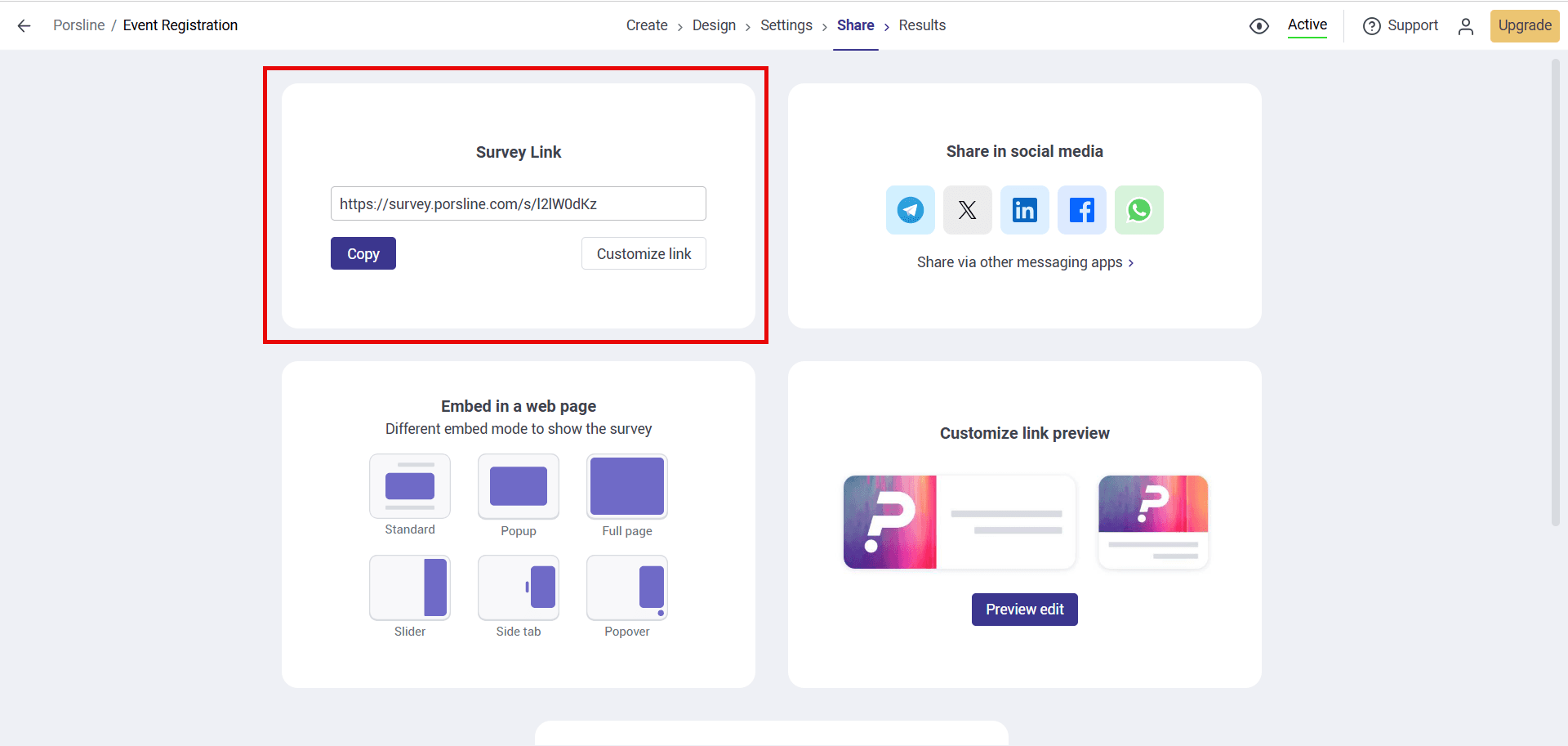
In Share, you'll find the survey's public link.
Copy the link and send it through the channel that best fits your audience, such as email, SMS, messaging apps, your organisation's internal communication channels, or another distribution method you already use.
Before distributing the survey widely, open the link in a private browser window or on another device to confirm that respondents can access it as intended.
Share the Survey on Social and Messaging Channels
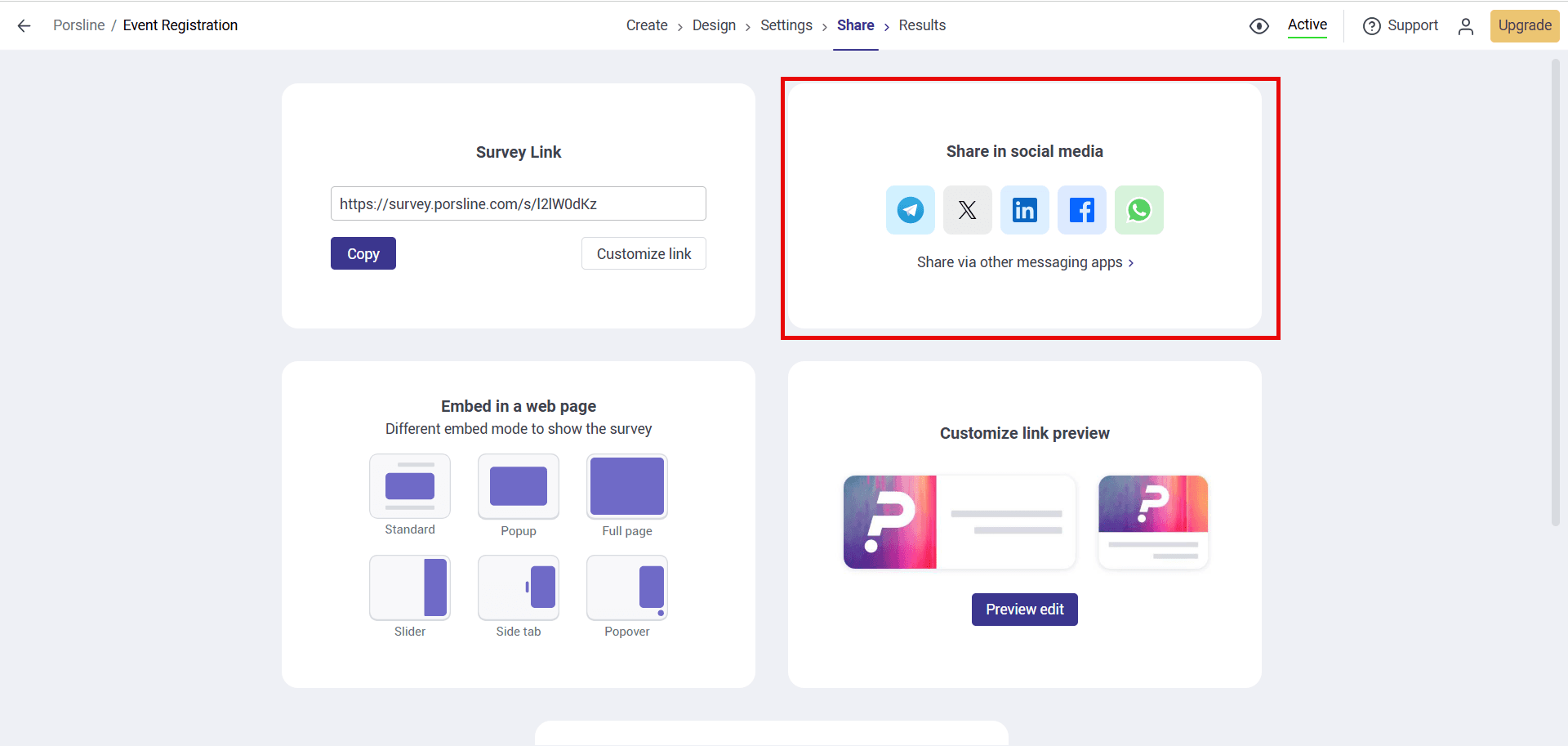
Porsline provides sharing options for channels such as WhatsApp, Telegram, X, LinkedIn, and Facebook.
You can use these options directly or copy the survey link and add it manually to your message or post.
Choose channels that your intended respondents actually use. If the survey is restricted to a defined audience, avoid distributing the link through public channels unless that matches your survey plan.
Share the Survey with a QR Code
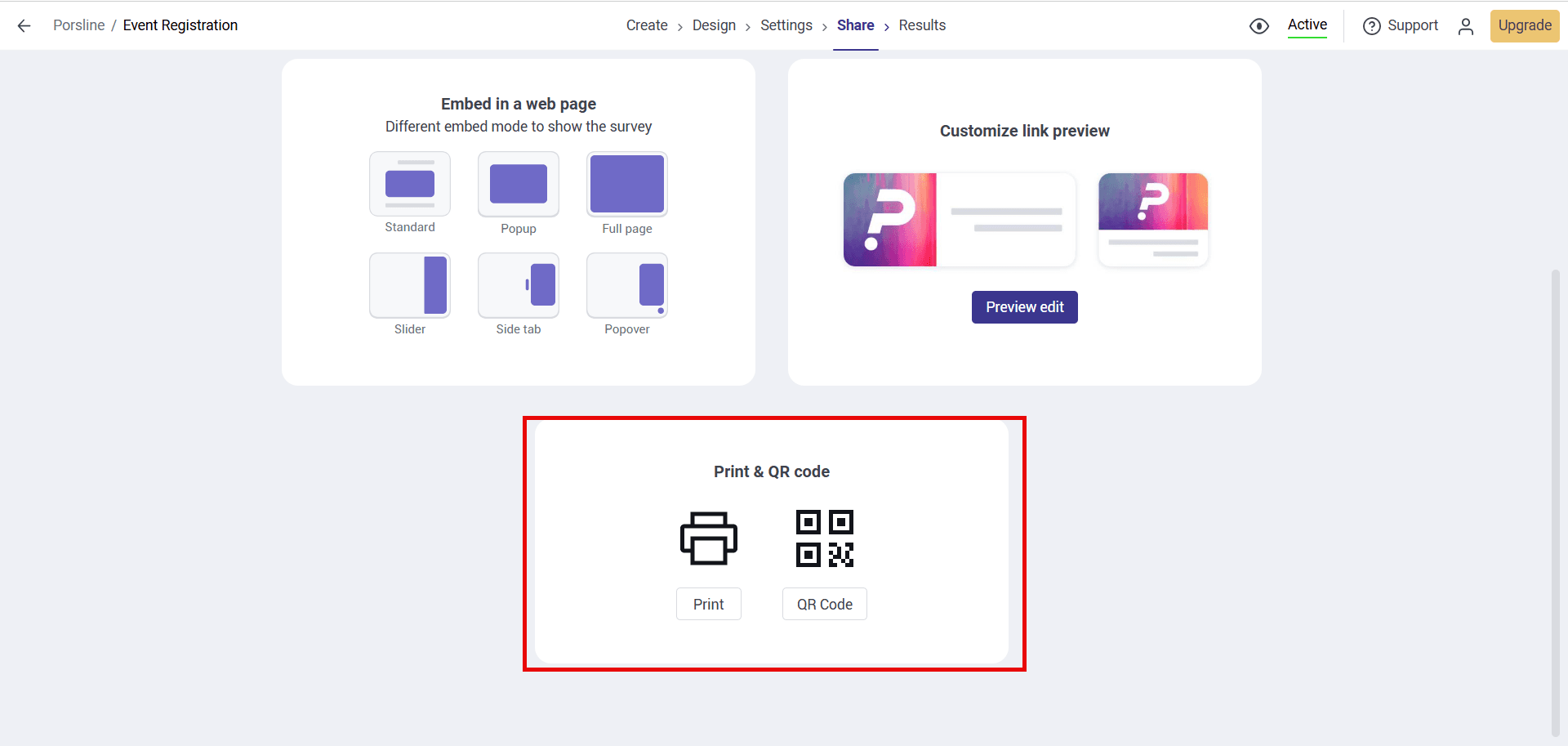
You can also generate a QR code for the survey.
QR codes are especially useful when people need to access the survey from a physical location or printed material, for example:
- Events and exhibitions.
- Hotels and restaurants.
- Schools and training centres.
- Reception desks and service counters.
- Posters, flyers, and printed materials.
Respondents can scan the code with their phone and open the survey without typing the URL.
Porsline currently includes QR-code sharing among its survey distribution options.
Embed the Survey on Your Website
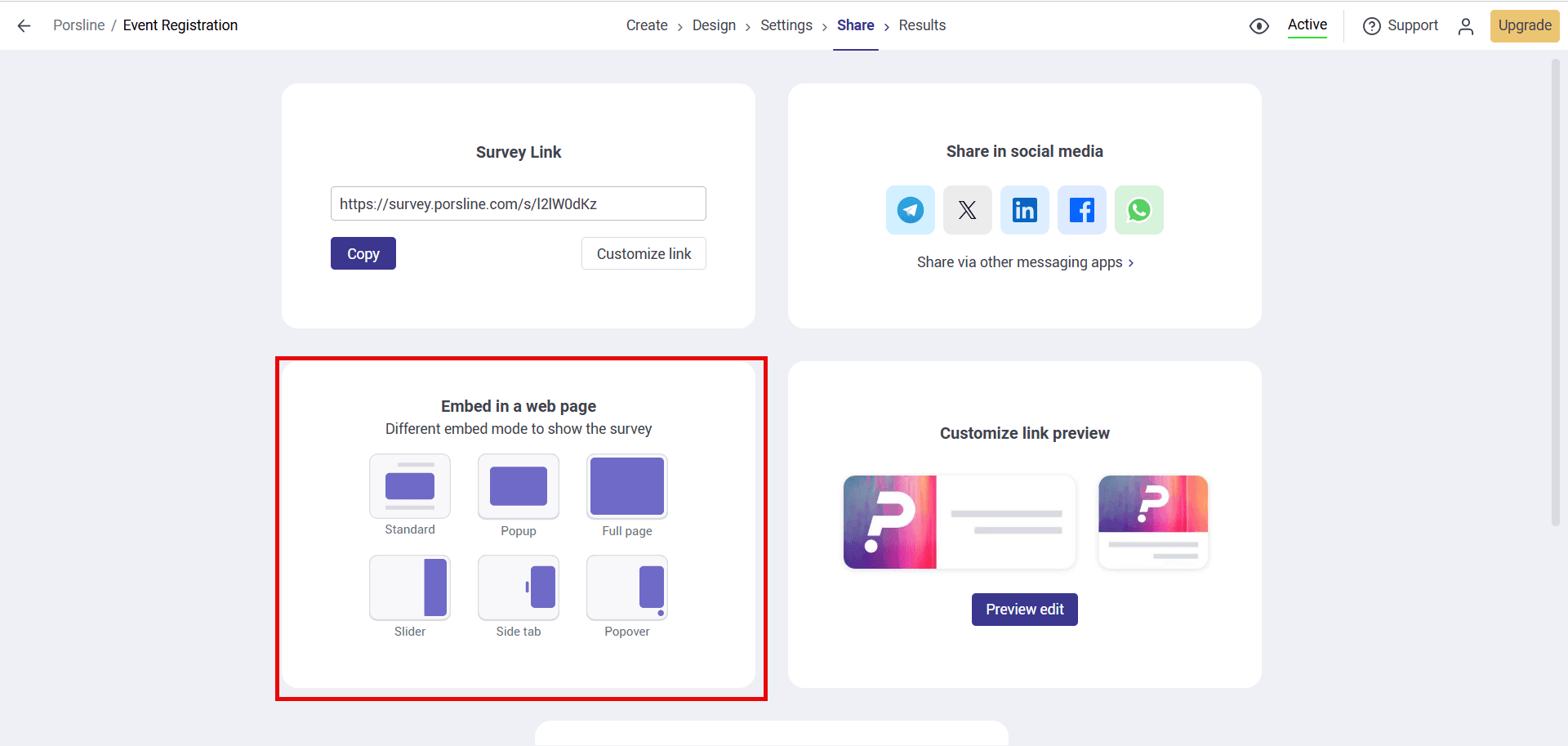
If you want visitors to complete the survey without leaving your website, use Porsline's website display options.
Depending on how you want the survey to appear, you can use formats such as:
- Standard iframe embedding.
- Popup.
- Full-page display.
- Slider.
- Side tab.
- Widget or popover.
After selecting the display method, get the available embed or HTML code and add it to the relevant page on your website.
Test the page on both desktop and mobile before making it available to visitors.
If your site runs on WordPress, Porsline also supports adding surveys and forms through its WordPress integration. Website embedding, popups, sliders, widgets, QR sharing, and the WordPress plugin are currently listed among Porsline's sharing features.
Use a Custom Subdomain or URL When Needed
If you want the survey link to reflect your organisation or brand more closely, Porsline offers custom subdomain and custom URL slug options on plans that include these features.
This can be useful when you're sharing surveys externally with customers, employees, research participants, or other audiences and want the link to be easier to recognise.
These options are plan-dependent. Check the current Porsline pricing and plan features before configuring a custom subdomain or URL.
Customise the Survey Link Preview
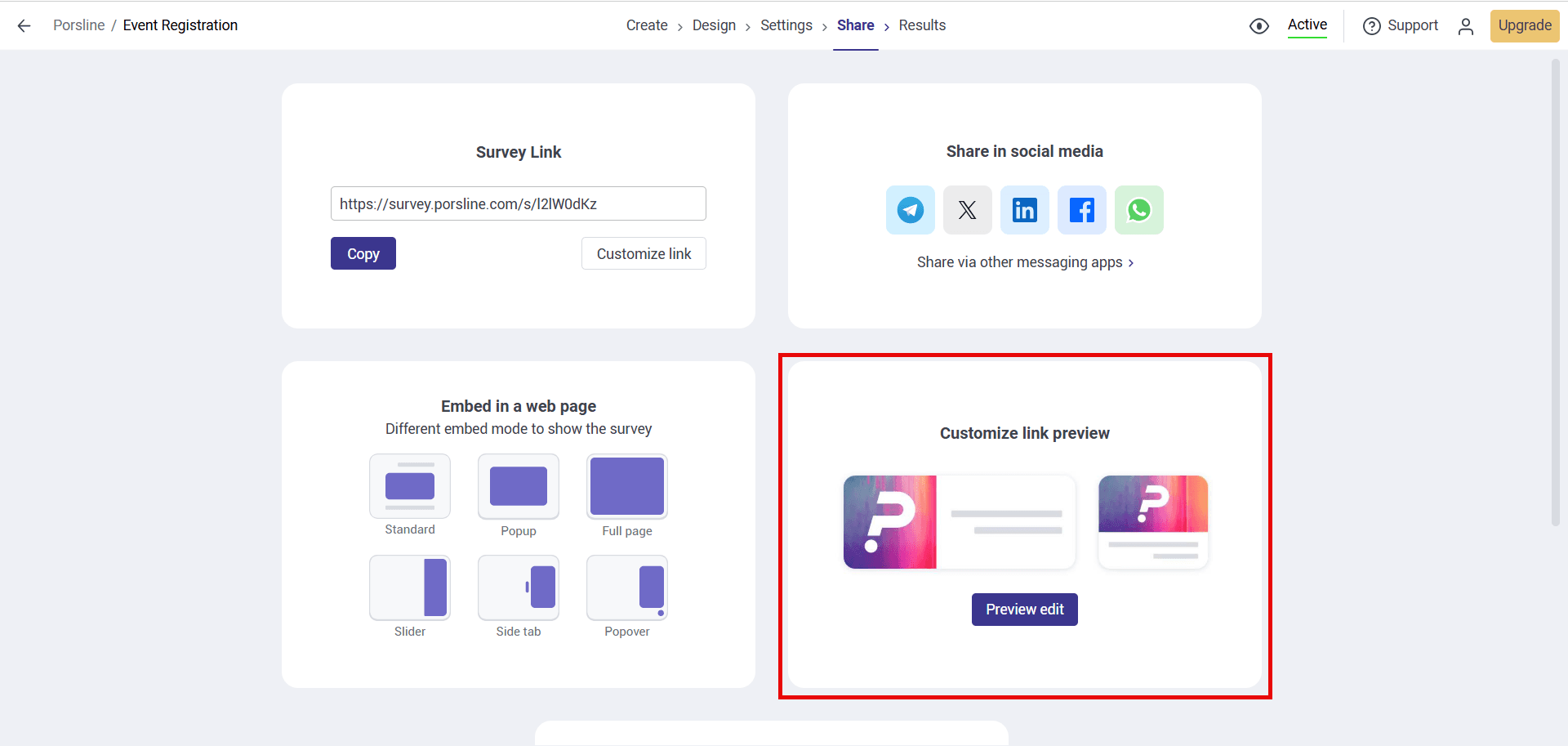
When you share a survey link through some social platforms or messaging apps, the recipient may see a preview containing an image, title, and short description.
If you use Porsline's link preview customisation option, review:
- The preview image.
- The survey title.
- The short description.
- Whether the preview accurately represents the survey.
A clear preview helps respondents understand what they're about to open before they follow the link.
Which Survey Sharing Method Should You Use?
The best distribution method depends on where your respondents are and how they are most likely to access the survey.
If you have a defined list of respondents, sending the direct link through email or your normal communication channel is often the simplest option.
If respondents are already visiting your website, embedding the survey or using one of the website display formats can reduce the number of steps they need to take.
For events, venues, classrooms, stores, or other physical locations, a QR code can provide quick mobile access.
For a public survey intended for a wider audience, social and messaging channels may be appropriate.
Before distributing the survey widely, complete one final test from the respondent's perspective, then choose the channel that makes access clear and convenient for your audience.
FAQs About Sharing Surveys
Here are quick answers to common questions about sharing surveys and distributing survey links in Porsline.
Can respondents submit answers when a survey is inactive?
No. When a survey is inactive, respondents cannot submit an answer, so no new response will be recorded.
Before sharing the link, make sure the survey is active in Share.
Can I display a Porsline survey on my website?
Yes. In Share, you can use website display options such as a standard iframe embed, popup, full-page display, slider, side tab, or widget.
Choose the appropriate display method, get the available code, and add it to the relevant page on your website.
Can I display several questions on the same page?
Yes. Use a Question Group when you want several related questions to appear together on one page.
Add the relevant questions to the group, then enable the option to display the group's questions on one page.
How do I send a survey link to respondents?
First, make sure the survey is active.
Then go to Share, copy the public survey link, and send it through the channel that best fits your audience, such as email, WhatsApp, SMS, messaging apps, internal communication channels, or social media.
How do I send a survey link by SMS?
Copy the survey link from Share, add it to your text message, and send it using your usual SMS service or provider.
Before sending it, confirm that the survey is active and that the link opens correctly on a mobile device.
How do I get a QR code for my survey?
Go to Share and select the option to create a QR code.
You can use the code on posters, printed materials, at events, service counters, or anywhere respondents may want to open the survey from their phones.
Test the QR code before publishing or printing it.
Can I customise the survey URL?
Yes, if your plan includes URL customisation features.
Depending on your plan, you may be able to customise the survey URL slug or use a custom subdomain.
See Porsline pricing and plan features for current availability.
Does editing a survey change its public link?
No. Editing the survey questions, content, or settings does not automatically change its public link.
You can continue using the same link unless you manually change the URL itself.
How do I print a survey?
Go to Share and select Print.
Your browser's print window will open, where you can print the survey or save it as a PDF if your browser or operating system supports that option.
How can I show my organisation or brand name in the survey URL?
If your plan includes a Custom Subdomain, you can use it to make the survey URL more closely reflect your organisation or brand.
URL slug customisation may also be available depending on your plan.
See Porsline pricing and plan features for current availability.